
AMP pages: the fast mobile versions of your pages
Published Updated
AMP (Accelerated Mobile Pages) are stripped-back, fast-loading versions of your pages that the platform generates automatically for mobile visitors coming from search. This guide explains what gets created, how it stays in sync with your content, what is different on an AMP page, and how to switch AMP off for a single page or your whole brand if you prefer not to use it.
What AMP pages are
AMP is a web standard for very fast, lightweight mobile pages. For every eligible page on your brand, the platform automatically produces an AMP version alongside the normal one, at the same address with /amp in front of the path: your /pricing page gets an AMP twin at /amp/pricing. Search engines discover it through a link on your normal page and may serve it to visitors on mobile connections.
You never author or maintain AMP pages yourself. They are built from the same content as your normal page (your headline, images, copy, member showcase, menus and sign-up buttons) and update whenever your page does. The AMP layout is consistent across all templates: your logo and colours, a slide-out menu, and your page's sections in a single fast mobile column.
What gets added to your pages
With AMP on, two things appear that you might notice when viewing your site's source:
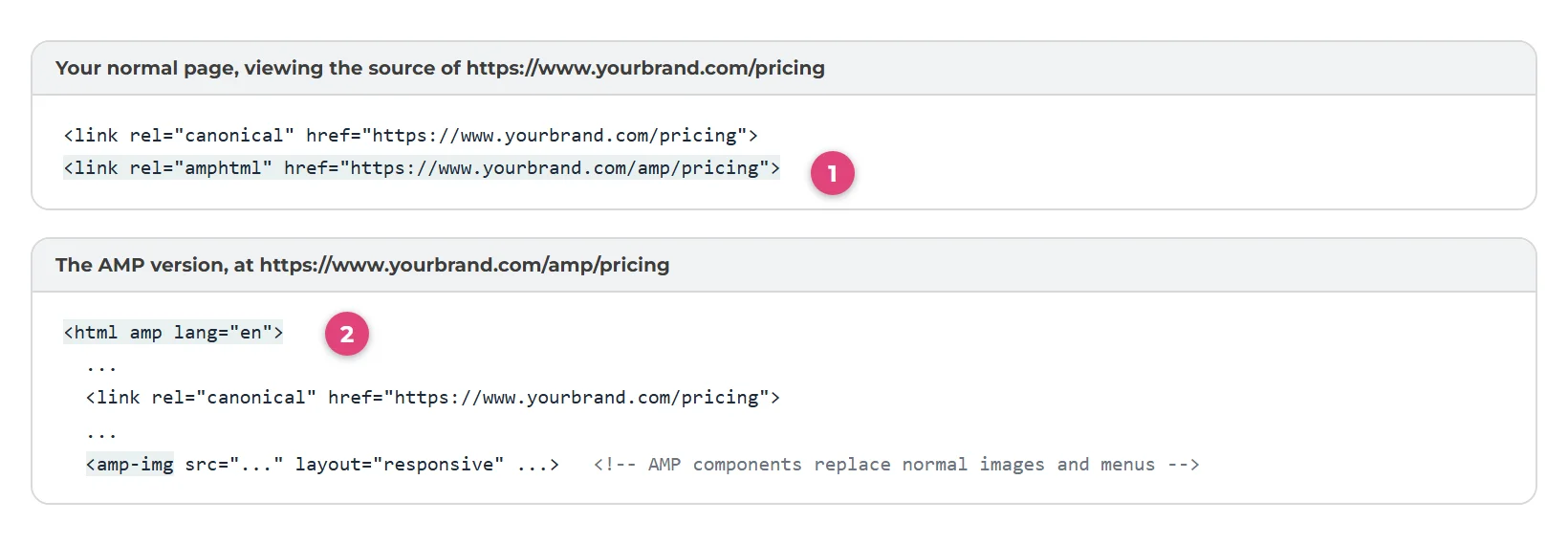
- On your normal page: a
rel="amphtml"link in the head (1), telling search engines where the AMP version lives. Visitors clicking around your site never see it. - On the AMP version: the page is marked as AMP (2), your images and menus are rebuilt with AMP's own components, and a canonical link points back at the normal page, so search engines treat the pair as one page with your normal address as the main one.
What is different on an AMP page
- A simplified layout. The AMP version is a purpose-built mobile rendering of your content, not a pixel-copy of the full page. Expect the same content in a leaner single-column look.
- No custom scripts. The AMP standard does not allow ordinary JavaScript, so custom header or footer scripts and third-party analytics tools do not load on AMP pages. Sign-up tracking still works: visits and clicks on AMP pages carry your tracking IDs through AMP's own mechanisms.
- Canvas pages are not included. AMP versions exist for template pages only. Pages built with Canvas do not get an AMP version, and the AMP option does not appear in their settings.
Turning AMP off for a single page
Open the page in the Pages tab and find its SEO settings. The Should create amp page toggle (1) controls AMP for this page only; the View AMP Page link (2) opens the live AMP version so you can see exactly what visitors get:
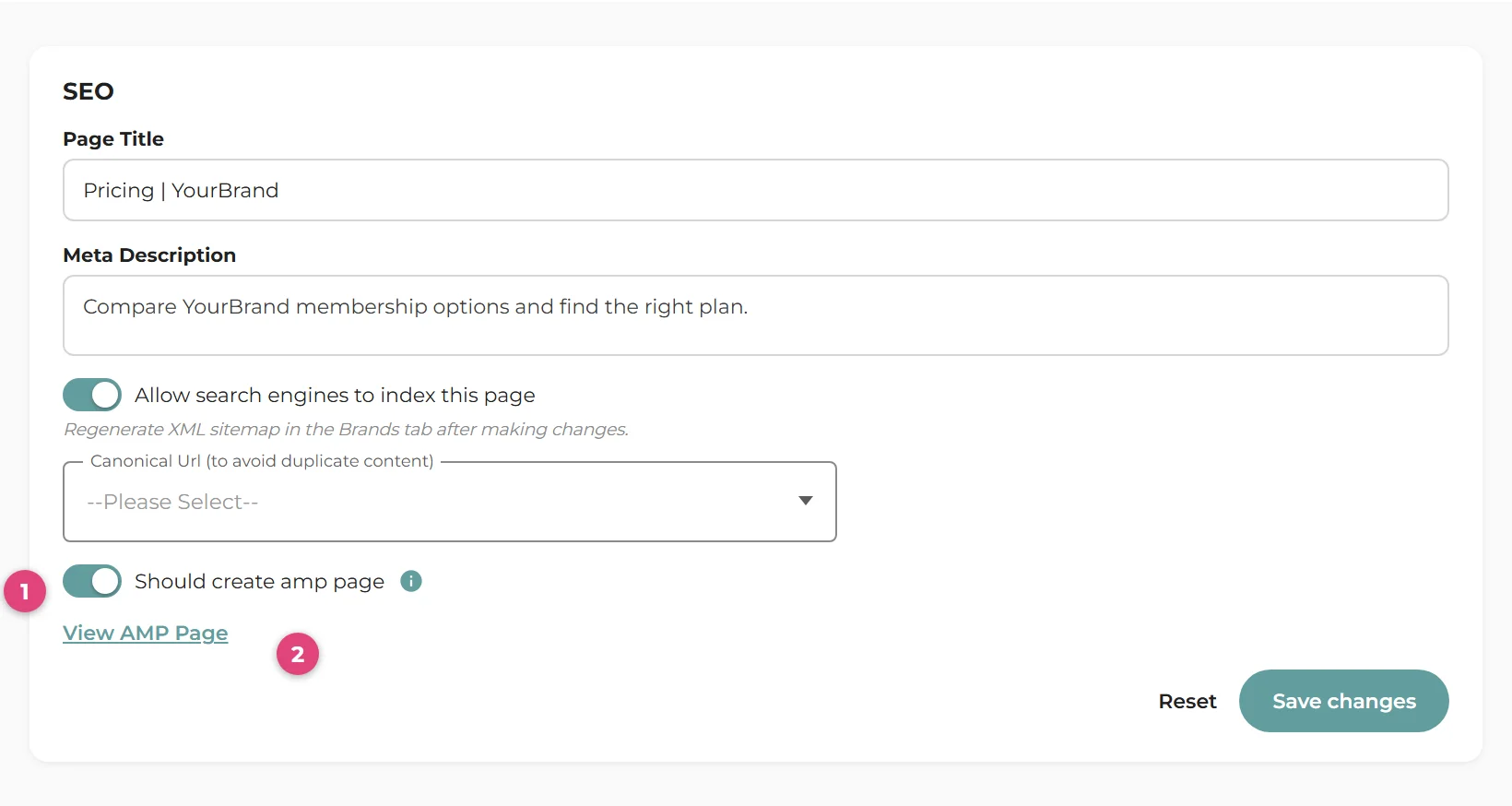
The per-page toggle is only available while AMP is enabled for the brand as a whole, and it does not appear on Canvas pages (which have no AMP versions).
Turning AMP off for the whole brand
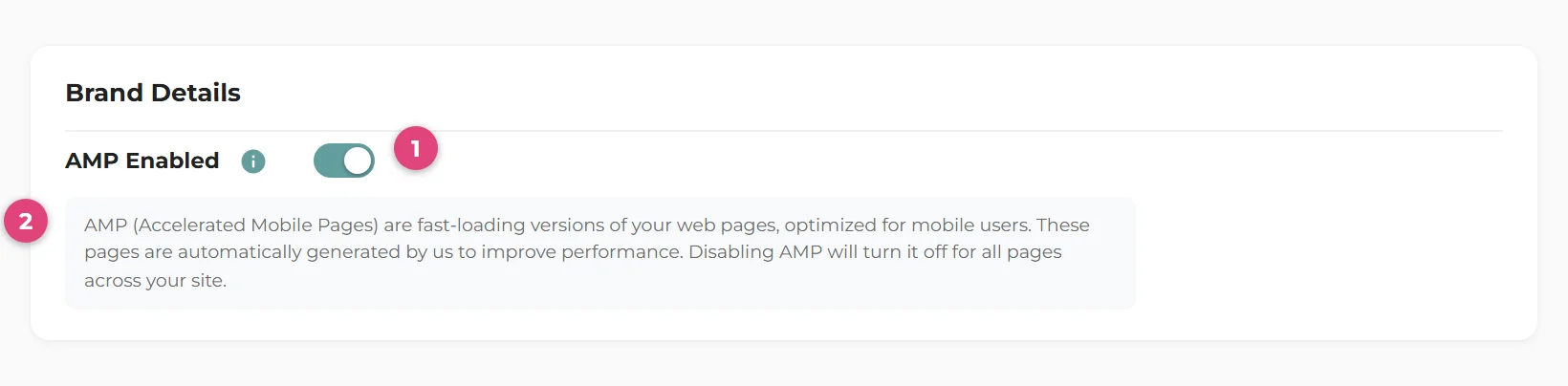
If you would rather not use AMP at all, switch it off once for the brand: on the About your brand tab, find AMP Enabled (1) and turn the toggle off. The info icon (2) reminds you what it does:
What happens when you turn AMP off
- Your normal pages stop advertising an AMP version (the
amphtmllink is no longer added). - The
/ampaddresses tell search engines not to index them, so any AMP results drop out of search over time and mobile visitors get your normal pages instead. - Nothing about your normal pages changes. You can switch AMP back on at any time.