Social and sharing
Control how your pages look when they are shared on social platforms and how they appear in search. It works at two levels: set brand-wide defaults once, then override them per page where a page should differ. Anything you leave blank on a page falls back to your brand defaults.
Part 1
Brand defaults
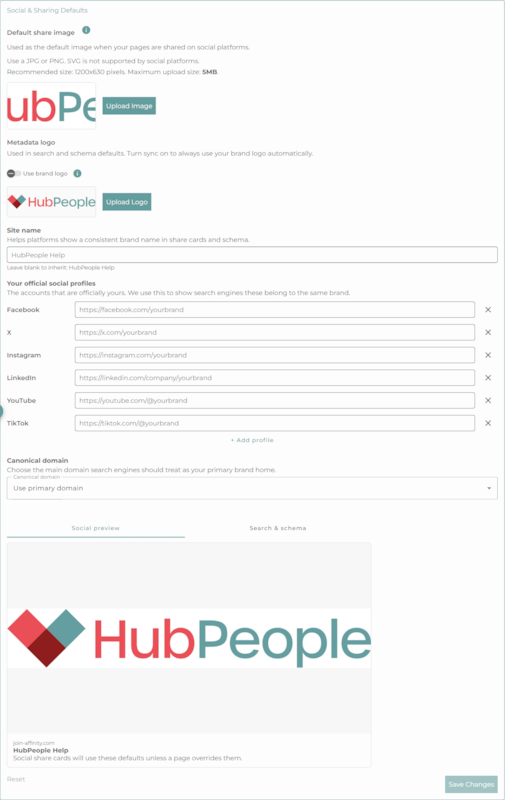
Open your brand and go to the About your brand tab. The Social & Sharing Defaults section sets the base that every page inherits.
- Default share image: the image used when your pages are shared on social platforms. Use a JPG or PNG (SVG and WebP are not supported as share images, because social platforms do not display them reliably), at a recommended size of 1200x630 pixels.
- Metadata logo: used in search and schema. Turn on Use brand logo to keep it in sync with your brand logo automatically.
- Site name: shown consistently in share cards and search results.
- Your official social profiles: add the Facebook, X, Instagram, LinkedIn, YouTube, and TikTok accounts that are officially yours, so search engines know they belong to the same brand.
- Canonical domain: the main domain search engines should treat as your primary brand home.
Your brand description matters here too. Search engines read it as the description of your whole site, on every page. You set it as the Description on the same About your brand tab, alongside your brand's name. If it is empty, your home page's description is used instead.
Part 2
Page overrides
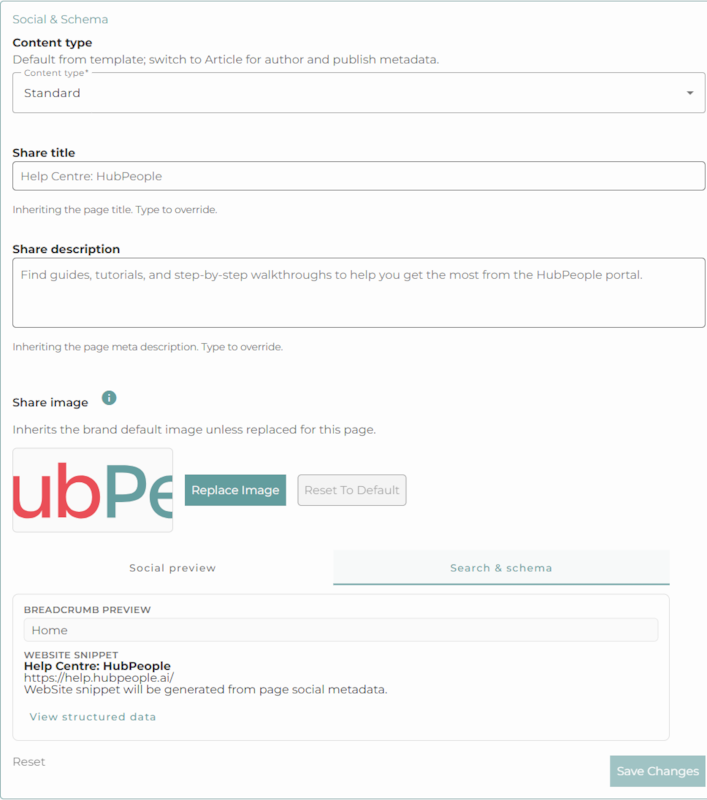
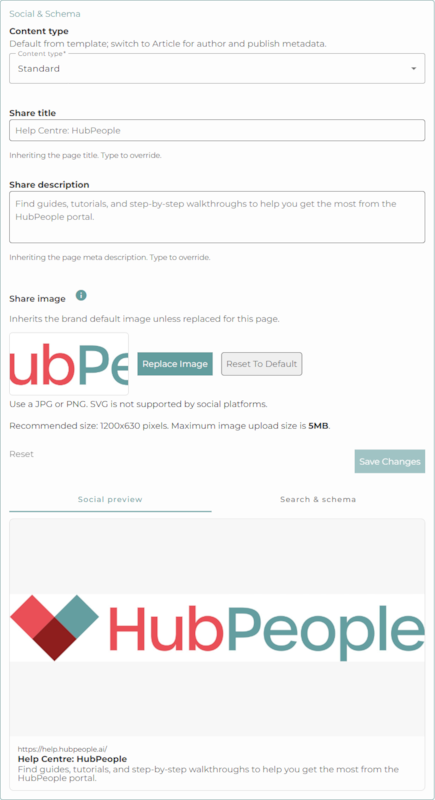
Every page has its own Social & Schema panel in the page editor (open the Pages tab and select a page). Use it to override the brand defaults for that page.
- Content type: leave it as Standard, or switch to Article to add an author and publish date.
- Share title and share description: these inherit the page title and meta description; type to override them.
- Share image: inherits your brand default image unless you replace it for this page (a JPG or PNG).
Preview in search
The Search & schema tab shows a breadcrumb preview and a website snippet built from your page metadata. Use View structured data to inspect the search-engine markup the page generates.