Partner workshop

The sign-up card, the members widget, pricing, the portal design, team members and Xsell.

Tuesday 10 November 2026 · 2:00 PM UK
Today

Agenda

1Sign-up card: more countries
2More members in the members widget
3Changes to pricing
4Portal design changes
5Team members for your brand
6Xsell updates
01

Sign-up card

Sign-up card

More countries on the sign-up card.

Every country224, up from 10. Pick a country, then type the town.
Or just yoursYour own list, in your order. Your assistant can suggest one.
Try it on the help siteSet it up, watch it change, copy it.

Ask your assistant to update the toolkit first. A list of countries needs the latest version.

Sign-up card

A new sign-up card builder on the help site.
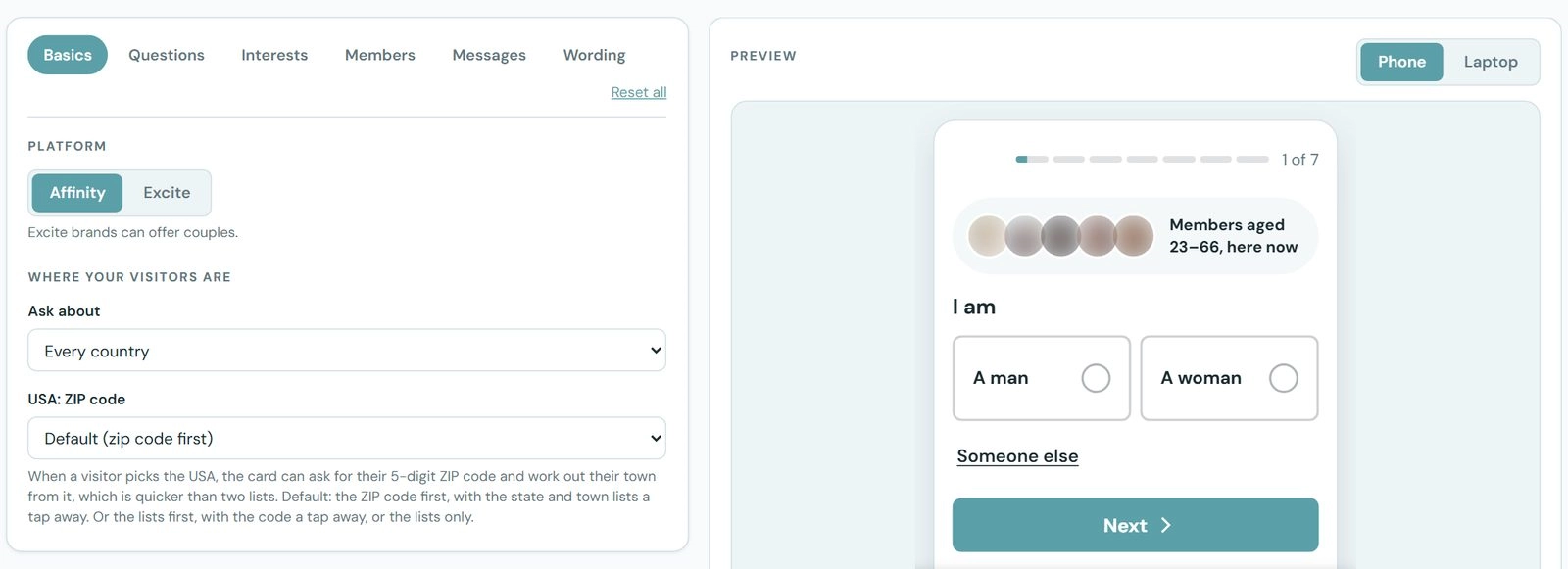
The Sign-up Card page on the help site: settings on the left, Basics tab open with Affinity or Excite and where your visitors are; a live preview of the card on a phone on the right.
1
Pick your settingsPlatform, countries, questions, wording.
2
Watch it changeOn a phone or a laptop.
3
Copy it outA prompt for your assistant, or the card itself.

Optional: your assistant can do all of this with the toolkit. help.hubpeople.ai/tools/sign-up-card

02

Members widget

Members widget · changed 9 November

The members widget now finds more of your members.

Before

The widget only looked at part of your brand's members.

Now

It looks at many more of them, in the widget and in the faces on the sign-up card.

Your demographics showed members the widget didn't? Try it again. Pages pick this up as they refresh.

03

Pricing changes

Prices on your pages · live today

Pricing now comes from the connector.

Before

  • The assistant hard-codes the price into the page when it builds it. When the price changes, the page does not.
  • An assistant could make up its own questions, answers and small print. We have seen pages promising things that are not true.

Now, from the connector

  • Prices fill themselves in every time the page is shown, in the currency you choose.
  • Every weekly price sits beside the amount charged and how often.
  • What Free, VIP and VIP+ include, from HubPeople.
  • The questions and the small print, word for word, so every site says the same thing.
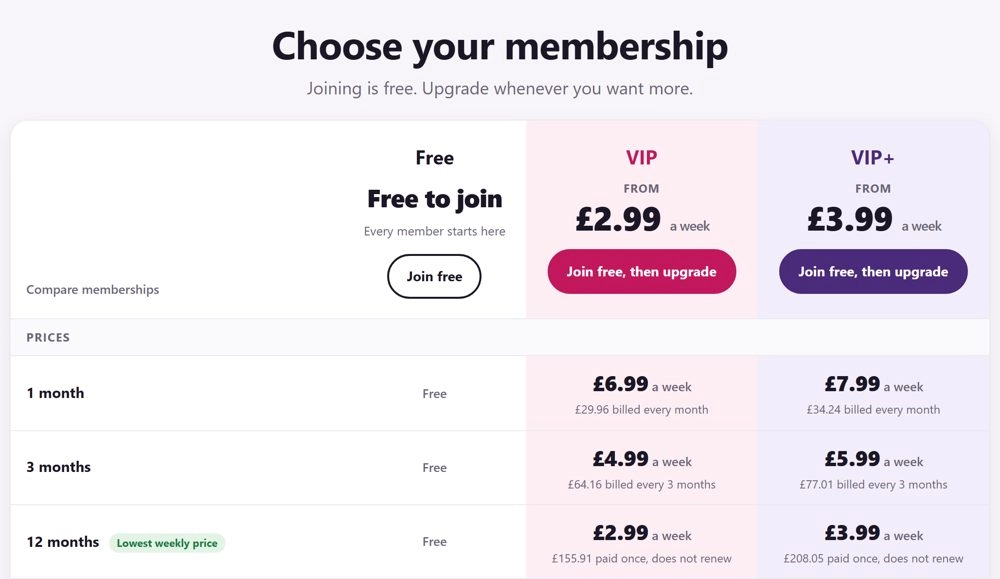
A pricing page built today on a test brand: Free, VIP and VIP+ side by side, each plan's weekly price with the amount charged and how often underneath.
A pricing page built today. Every price is filled in by HubPeople.
Prices on your pages · what we are asking

Please update your pricing pages.

1
Update the toolkitUsing the HubPeople Toolkit? Update to the latest version (0.119.0). Using the connector on its own? Nothing to do.
2
Ask your assistant“Rebuild the prices on my pricing page at [your page's address] from HubPeople, so they update themselves. Show me the change before it goes live.”
3
Check the live pageOnce it goes live, open the page. It shows today's prices.

Building a new one?

Ask: “Build a pricing page for [your brand], with prices in pounds. Show me a preview first.”

More than one currency? Just ask for it in the prompt.

Pricing page helper on the help site: pick a currency, see today's prices, copy the prompt.

We will be in touch individually about the pages that need changing, and we can help.

04

Portal design

Portal design · live since 9 November

The portal, tidied up.

Things had got a bit messy as features were added. We have moved them into the right places and made a few things easier.
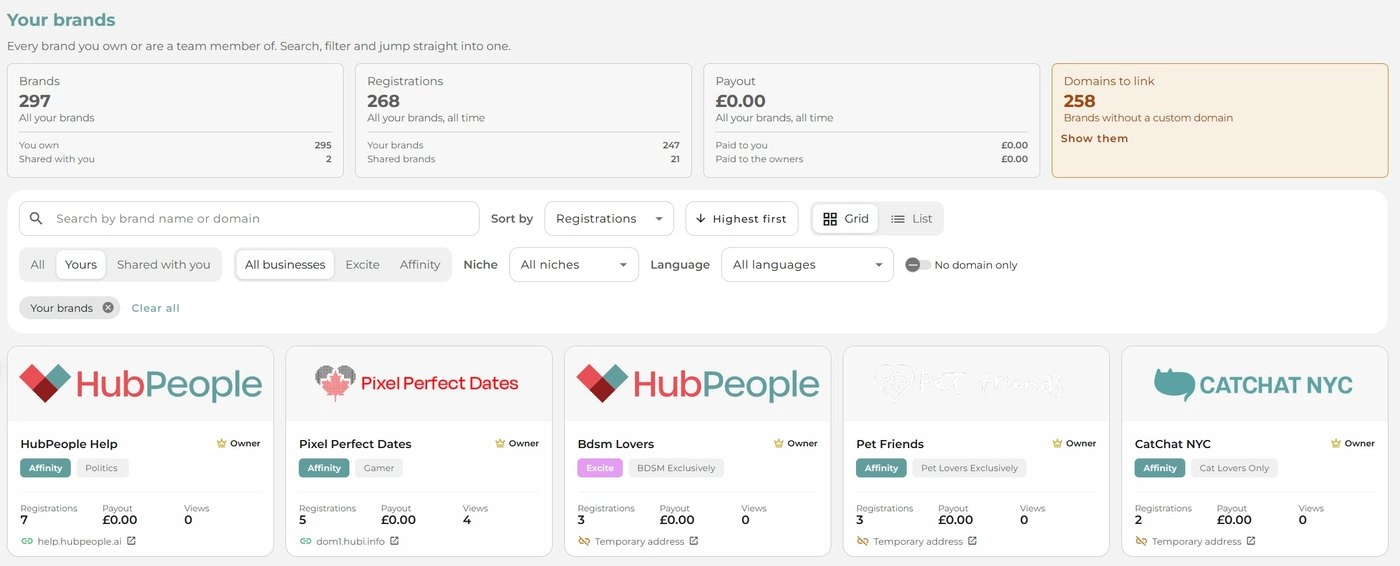
Your brands: totals for brands, registrations and payout, search and filters, and the brands as a grid of cards.
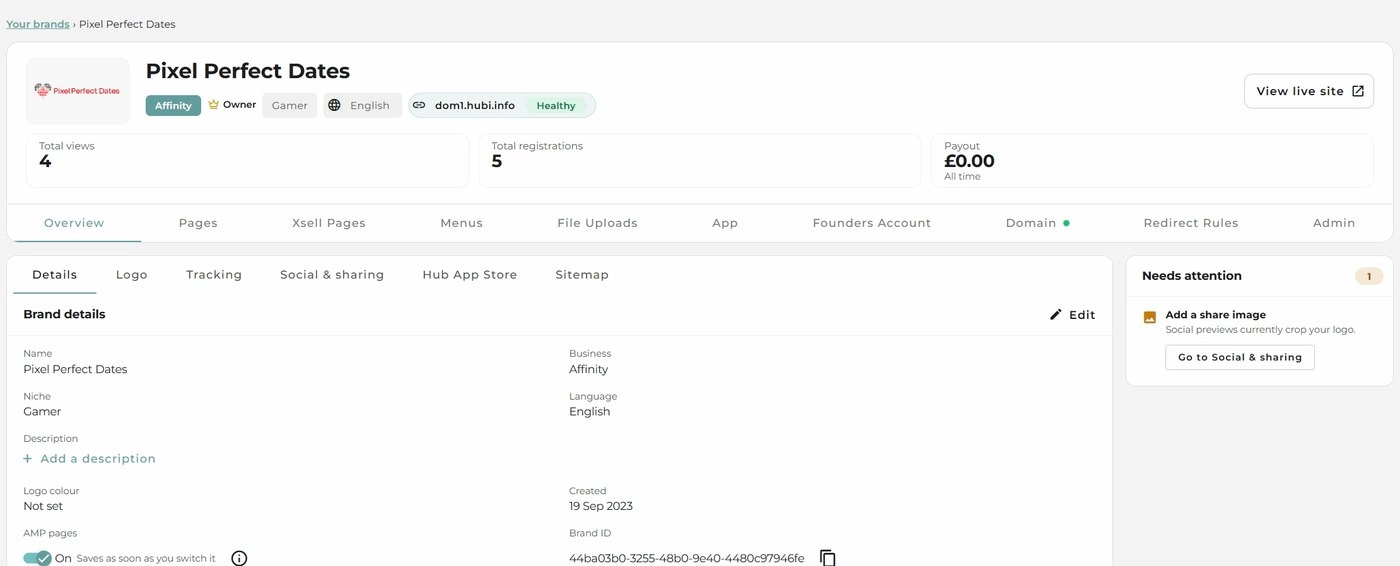
A brand's page: its summary, tabs for each area, the brand details and a Needs attention panel.
  • Your brands: owned and shared, search, filters, grid or list
  • Payout in the currency you are paid in
  • Each brand's areas in their own tabs
  • “Needs attention” shows what to fix, with a button to fix it
  • About Us and Features delete like any other page
  • New brands no longer get a sitemap page. Have one? You can delete it
05

Team members

Team members · available now, we set it up

Give someone access without sharing your login.

Their own login
Add someone else to your brand so they can work on it without sharing your credentials.
Shown on your brands
Each brand shows whether you are its Owner or a Team member.
We add them for you
It is an admin feature for now. If it would be useful to you, let us know.
06

Xsell

Martyn Padden, Head of Product
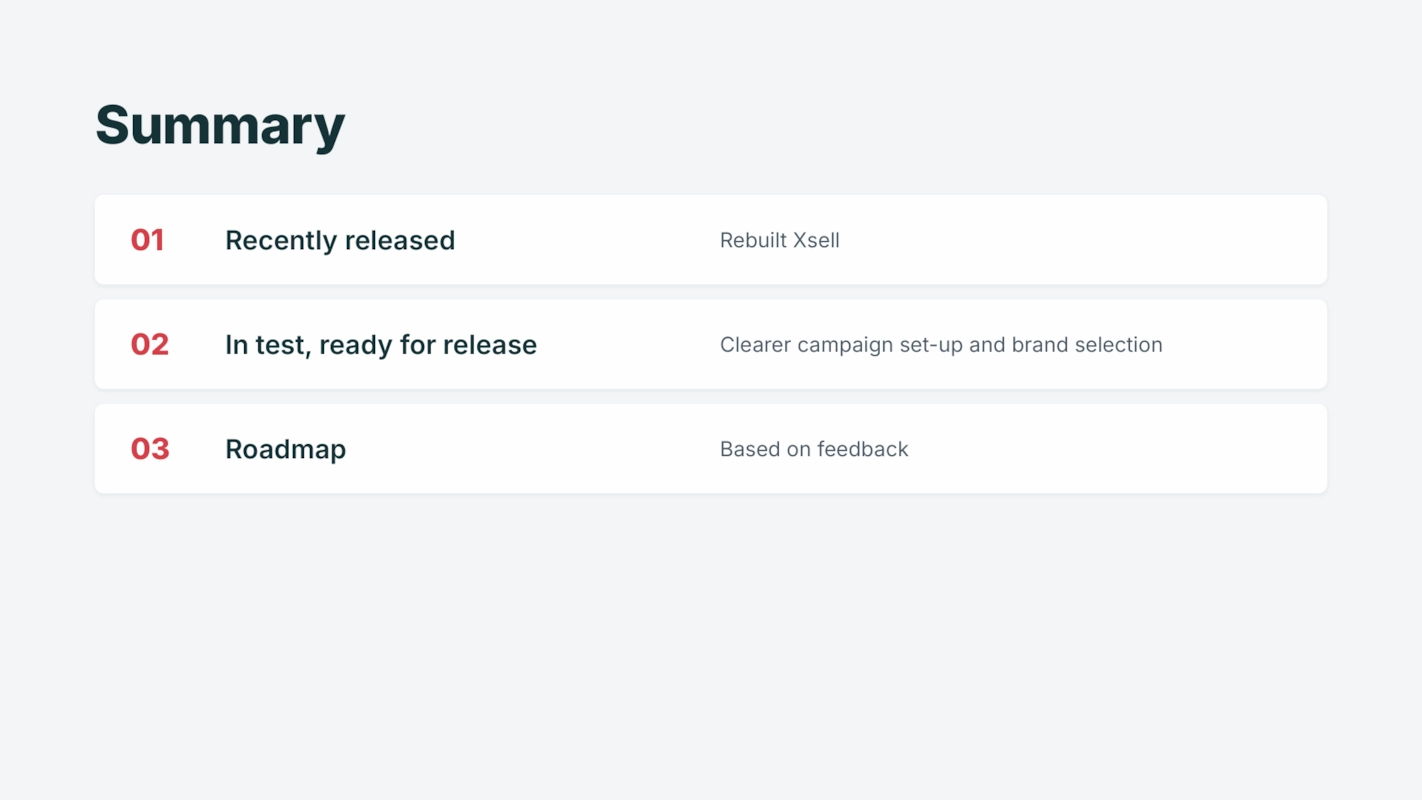
Summary. 01 Recently released: rebuilt Xsell. 02 In test, ready for release: clearer campaign set-up and brand selection. 03 Roadmap: based on feedback.
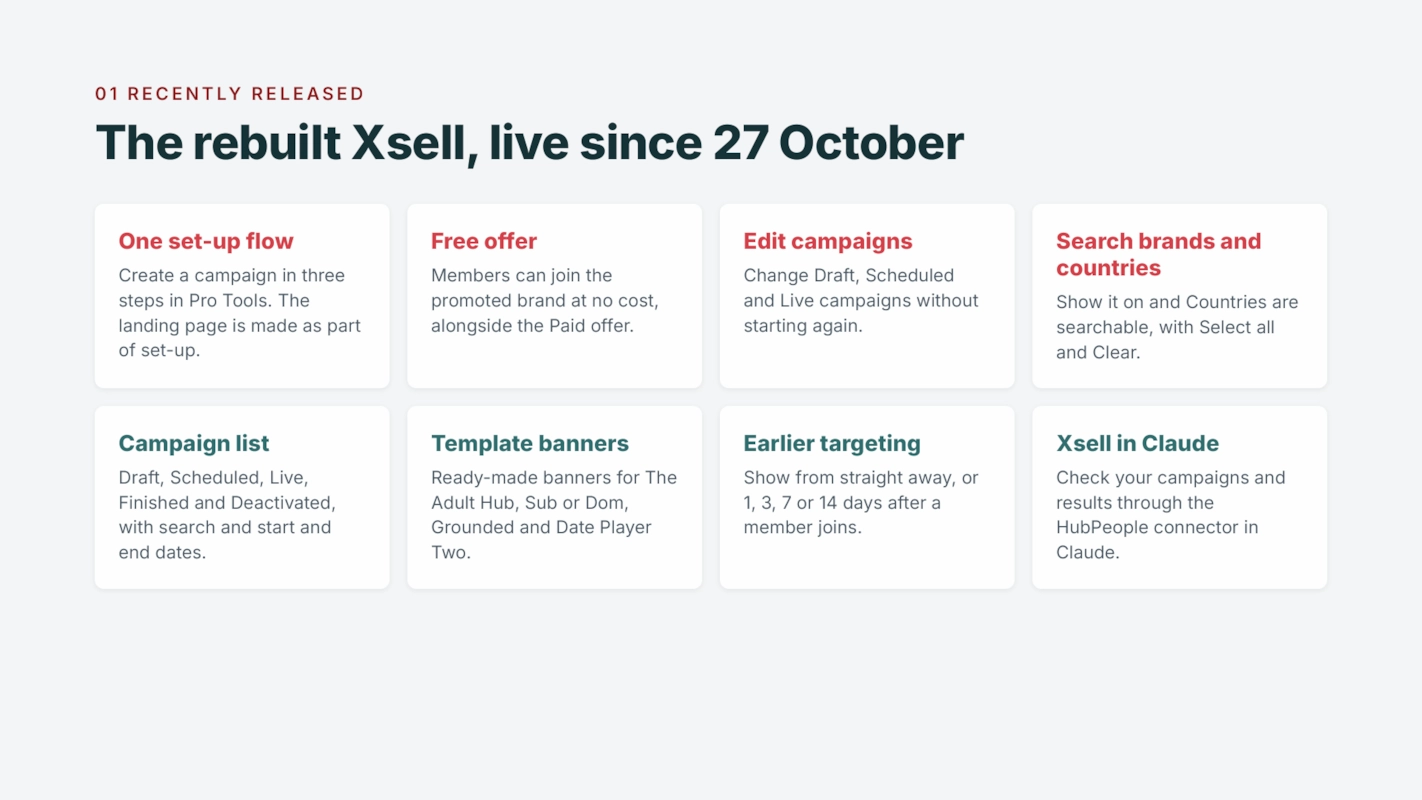
01 Recently released. The rebuilt Xsell, live since 27 October. One set-up flow: create a campaign in three steps in Pro Tools, the landing page is made as part of set-up. Free offer: members can join the promoted brand at no cost, alongside the Paid offer. Edit campaigns: change Draft, Scheduled and Live campaigns without starting again. Search brands and countries: Show it on and Countries are searchable, with Select all and Clear. Campaign list: Draft, Scheduled, Live, Finished and Deactivated, with search and start and end dates. Template banners: ready-made banners for The Adult Hub, Sub or Dom, Grounded and Date Player Two. Earlier targeting: show from straight away, or 1, 3, 7 or 14 days after a member joins. Xsell in Claude: check your campaigns and results through the HubPeople connector in Claude.
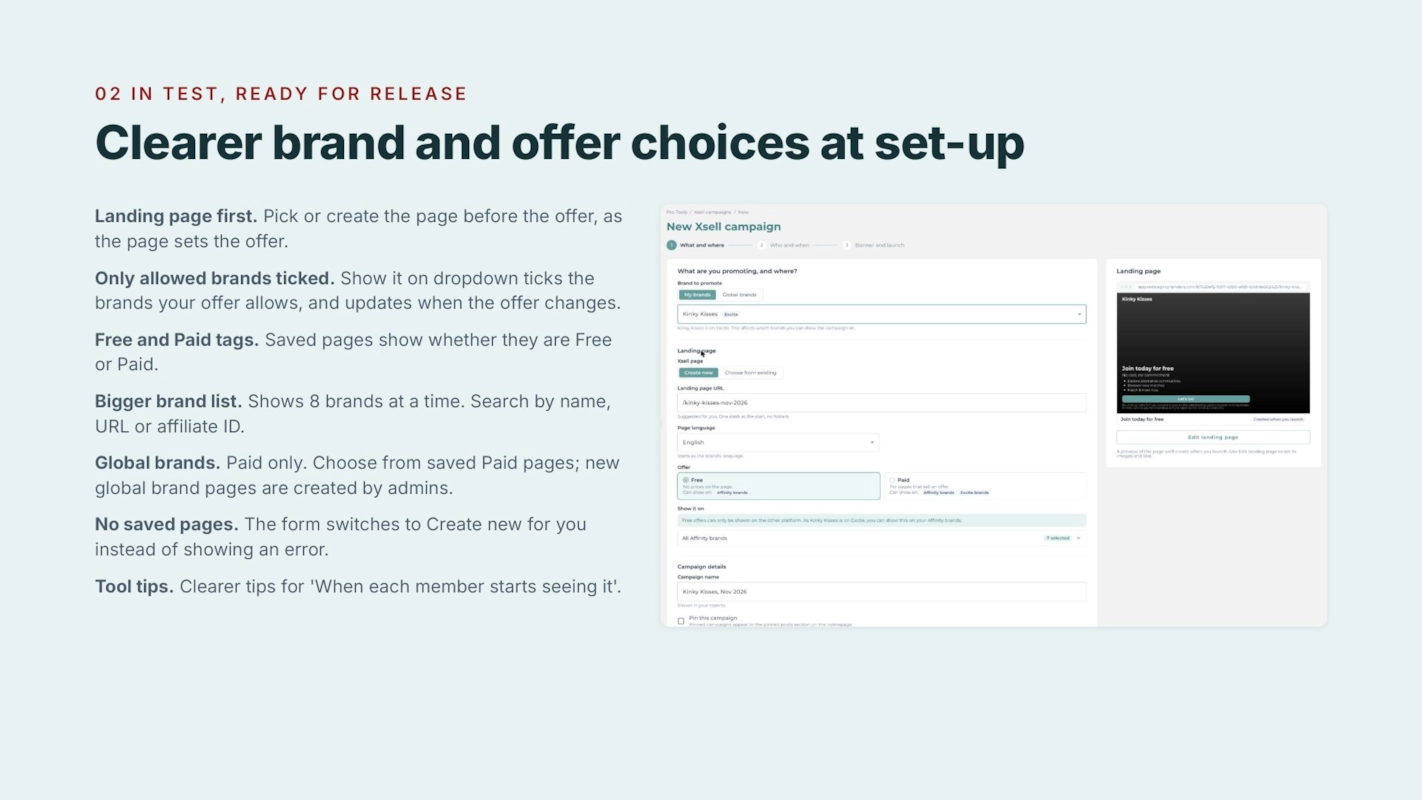
02 In test, ready for release. Clearer brand and offer choices at set-up. Landing page first: pick or create the page before the offer, as the page sets the offer. Only allowed brands ticked: the Show it on dropdown ticks the brands your offer allows, and updates when the offer changes. Free and Paid tags: saved pages show whether they are Free or Paid. Bigger brand list: shows 8 brands at a time, search by name, URL or affiliate ID. Global brands: Paid only, choose from saved Paid pages; new global brand pages are created by admins. No saved pages: the form switches to Create new for you instead of showing an error. Tool tips: clearer tips for When each member starts seeing it. Beside it, a screenshot of the New Xsell campaign form.
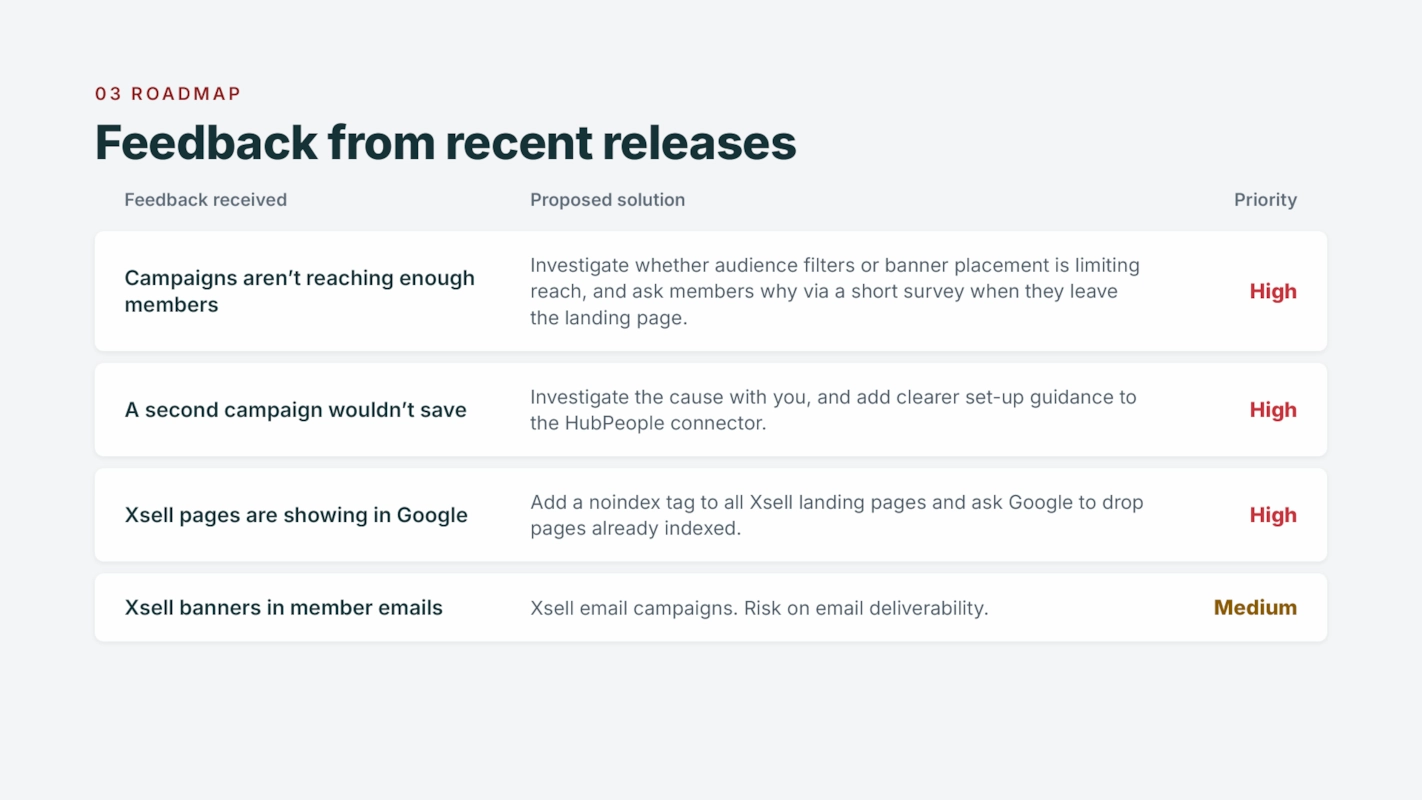
03 Roadmap. Feedback from recent releases. Campaigns are not reaching enough members: investigate whether audience filters or banner placement is limiting reach, and ask members why via a short survey when they leave the landing page. High. A second campaign would not save: investigate the cause with you, and add clearer set-up guidance to the HubPeople connector. High. Xsell pages are showing in Google: add a noindex tag to all Xsell landing pages and ask Google to drop pages already indexed. High. Xsell banners in member emails: Xsell email campaigns, risk on email deliverability. Medium.
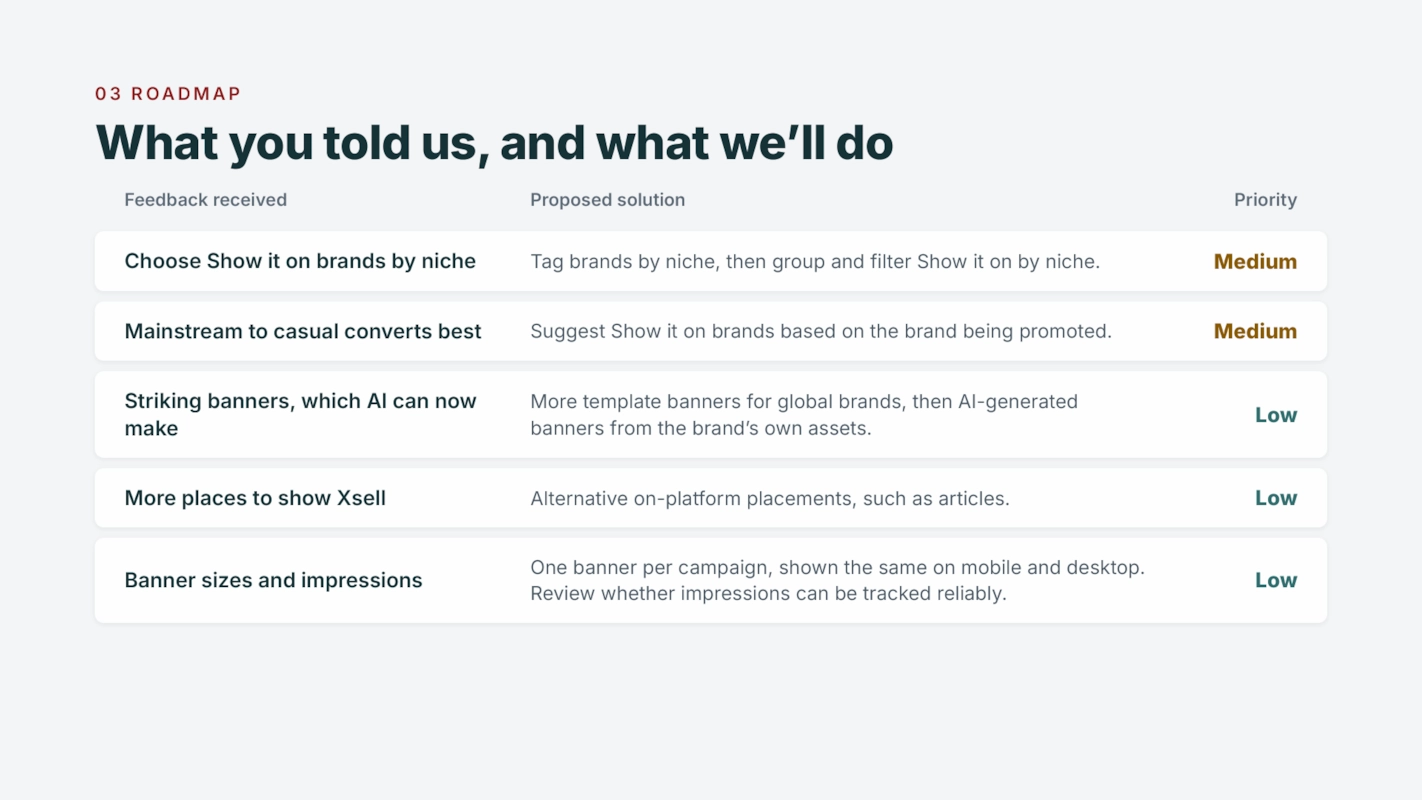
03 Roadmap. What you told us, and what we will do. Choose Show it on brands by niche: tag brands by niche, then group and filter Show it on by niche. Medium. Mainstream to casual converts best: suggest Show it on brands based on the brand being promoted. Medium. Striking banners, which AI can now make: more template banners for global brands, then AI-generated banners from the brand's own assets. Low. More places to show Xsell: alternative on-platform placements, such as articles. Low. Banner sizes and impressions: one banner per campaign, shown the same on mobile and desktop; review whether impressions can be tracked reliably. Low.
← Back to the workshop Partner workshop  ·  10 November 2026
01 / 20