
Deep dive: Caching with your own Cloudflare
Published Updated
If your domain runs through your own Cloudflare, you can choose how long your visitors' browsers keep the files your pages load, such as your stylesheet and fonts. Keeping them for longer, a month or more, makes repeat visits a little faster and clears PageSpeed's cache warning. In return, you or your AI agent version those files, so that a change still reaches everyone.
Is this for you?
It is worth doing when all three of these are true:
- Your domain is linked through your own Cloudflare with the proxy on, as in Linking your domain with Cloudflare.
- Your site's look is settled, so those files rarely change.
- You are comfortable adding a rule in Cloudflare, and you or your AI agent will keep the versions in your pages up to date.
If not, the standard setup is the right one and there is nothing to do.
How caching works
Three places can hold a copy of a page or file: your visitor's browser, Cloudflare, and our servers. Our servers always have the latest version from the portal, and ask for it to be kept for 6 minutes.
So there are two clocks:
- Cloudflare's copy (its Edge TTL). A purge in Cloudflare clears it.
- The browser's copy (its Browser TTL). Nothing can clear it from outside: it stays until its time runs out.
With the standard setup, Browser Cache TTL set to Respect Existing Headers, both follow our 6 minutes. Anything you change in the portal reaches your visitors within minutes. If Browser Cache TTL is left on Cloudflare's own default, browsers keep files for 4 hours instead, though pages still follow our 6 minutes.
What a longer cache gives you, and what it asks
| It gives you | It asks of you |
|---|---|
|
|
Step 1: version your files
A version is a short code on the end of a file's address, such as global.min.css?v=3f9a1c2b7e. Our servers ignore it and always send the current file. Browsers and Cloudflare treat a new code as a new file and fetch it. That is what makes a long cache safe.
Do this before adding the rule, for every file you want kept longer. A file can be named in a few places, and every one needs the version:
- each link to it on your pages, such as the stylesheet link on every page;
- its address inside another file, such as each font's
url(fonts/...)in the stylesheet; - any preload of it in your pages.
A file's address must be exactly the same everywhere it appears, a font in the stylesheet and in a preload, for example. If two differ, browsers download it twice.
If your AI agent looks after your pages, ask:
Version the files my pages load from Brand Assets, such as the stylesheet and fonts, so they can be cached for a long time. Add ?v= and a short fingerprint of each file's contents to every link to them, on every page and inside other files, such as the font addresses in the stylesheet and any preloads, keeping each file's address identical everywhere. From now on, whenever you change one of these files, upload it first, then update its version everywhere it is linked.
To check, open one of your pages and press Ctrl+U (View page source). The stylesheet link should end in ?v= and a code.
Step 2: add the Cache Rule
In your Cloudflare account, open your domain, then:
- Go to Caching › Cache Rules and press Create rule.
- Give it a name, for example Fonts and stylesheet, a year (2).
- Under When incoming requests match, set Field to URI Path, Operator to wildcard, and Value to
/fonts/*(3). - Press Or, then add URI Path, wildcard, and your stylesheet's address, for example
/global.min.css(4). Add one more condition, joined with Or, for each other file or folder you have versioned. - Check the Expression Preview (5) reads like this:
(http.request.uri.path wildcard r"/fonts/*") or (http.request.uri.path wildcard r"/global.min.css") - Under Cache eligibility, choose Eligible for cache (6).
- Under Browser TTL, press Add setting, choose Override origin and use this TTL, and pick how long (7). 1 month or more clears PageSpeed's warning; this example uses 1 year.
- Leave everything else as it is and press Deploy at the bottom of the page.
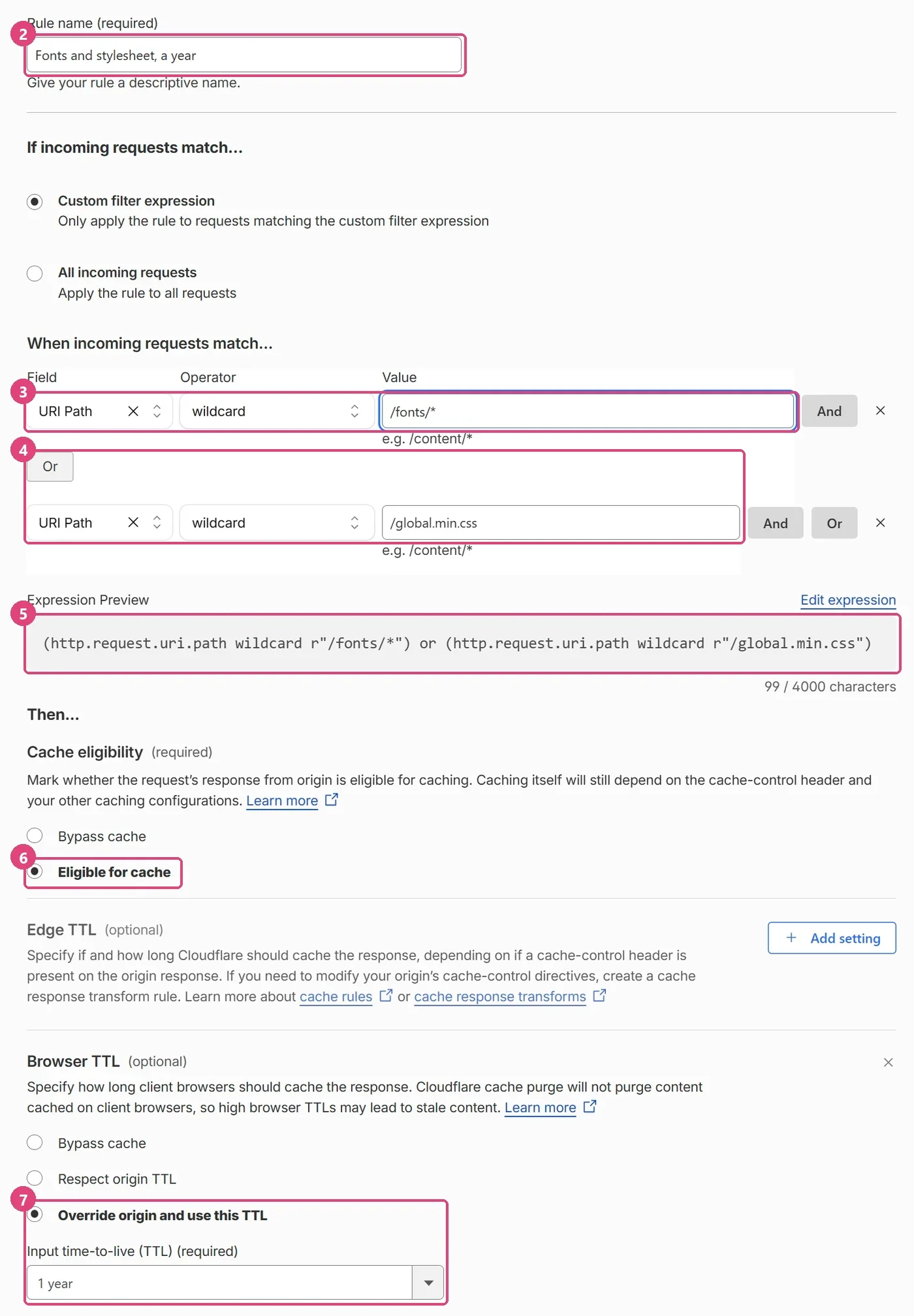
/fonts/* would never match it. If your fonts live in a different folder, use that folder's name instead. Changing a file later
- Upload the changed file first.
- Then change its version everywhere it is linked. For a font, that means the stylesheet and any preload, which changes the stylesheet too, so give the stylesheet a new version on every page.
Your visitors pick up the new pages within minutes, and the new file with them.
- Pages changed before the file. Visitors fetch the new address before the new file is there, get the old file, and keep it for as long as your rule says.
- A page missed. Returning visitors to that page keep the old file.
- Caching Level changed. Under Caching › Configuration, Caching Level must stay on Standard, which treats a new
?v=as a new file. Ignore Query String would undo your versioning.
What about your pages and images?
The rule only matches the files you name. Your pages and images work differently, and need nothing from you:
- Pages are kept for 6 minutes. That is what our servers ask for on every page, and Cloudflare does not store pages at all unless a rule tells it to. So a change you make in the portal reaches your visitors within 6 minutes, with nothing to purge.
- Some pages refresh by themselves. Pages that show members are rebuilt regularly to bring in new profiles, and those refreshes reach visitors the same way.
- A page cannot be versioned like a file. Its address is the one visitors and search engines use, so it cannot change with every edit.
- Images you add through the portal come from our image CDN, which already keeps them for 30 days, and a new upload arrives at a new address.
Caching pages for longer at Cloudflare would hold back your edits and those refreshes until you purged, so leave pages out of the rule.
Check it is working
In Chrome, open your site, press F12 and choose Network. Untick Disable cache and tick Keep log (1), then load a page and click through to another.
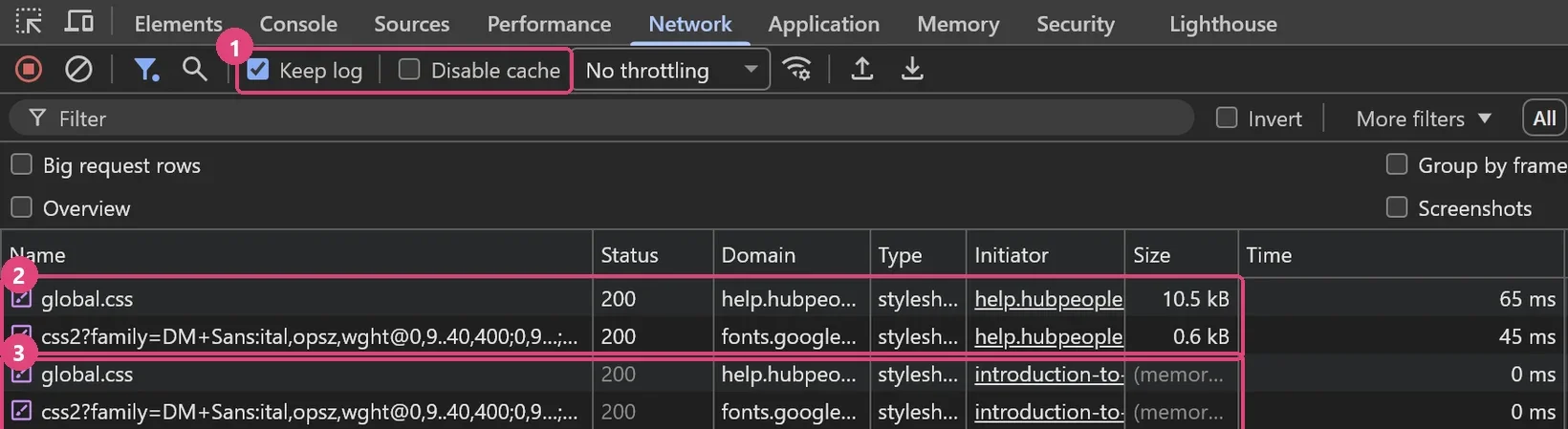
Click the stylesheet, then Headers, and look at Response Headers:
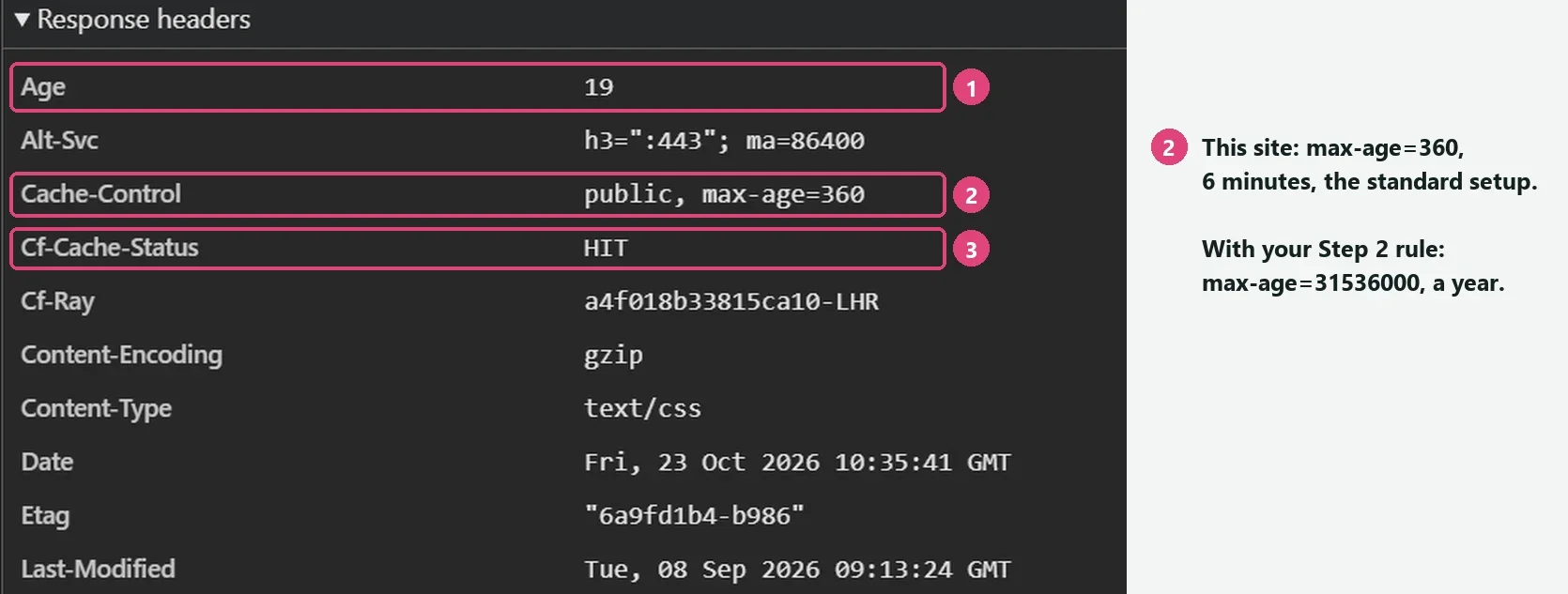
- Age: how many seconds Cloudflare has held its copy.
- Cache-Control: how long browsers may keep the file, in seconds. The example shows
max-age=360, 6 minutes, because that site has no rule. Once your Cache Rule from Step 2 is in place, the files it matches show your time instead:max-age=31536000for a year,max-age=2592000for a month. That is how you know the rule is working. - Cf-Cache-Status: what Cloudflare did. HIT means it used its copy.
| Cf-Cache-Status | Meaning |
|---|---|
| HIT | Served from Cloudflare's copy |
| MISS | Cloudflare had no copy yet, so it asked our servers |
| REVALIDATED | Cloudflare checked with our servers, nothing had changed, so it used its copy |
| EXPIRED | Cloudflare's copy was out of date, so it fetched a fresh one |
| DYNAMIC | Not cached at all, which is how your pages show |
Quick checklist
| Where | What |
|---|---|
| Your pages and files | A ?v= on every link to a file you version, wherever it appears |
| Caching › Cache Rules | One URI Path condition for each versioned file or folder, joined with Or; Eligible for cache; Browser TTL, Override origin, 1 month or more (the example uses 1 year) |
| Caching › Configuration | Caching Level Standard; Browser Cache TTL Respect Existing Headers |
| When a file changes | Upload it first, then give it a new version everywhere it is linked |
Further reading
Cloudflare's own documentation on the settings this guide uses:
- Cache Rules: what they are and how to create one.
- Cache Rules settings: Cache eligibility, Edge TTL and Browser TTL in full.
- Edge and Browser Cache TTL: the two clocks, and when Cloudflare replaces our header.
- Default cache behaviour: which files Cloudflare caches, and why it leaves pages alone.
- Caching levels: how Standard treats a new
?v=as a new file. - Purge cache: what a purge clears, and how it differs from invalidating.
- Cache responses: every Cf-Cache-Status value.
And Google's page on the PageSpeed warning: Use efficient cache lifetimes.