
Linking your domain with Cloudflare: DNS and SSL settings
Published Updated
The advised way to link your own domain to your brand is through a Cloudflare account with the proxy enabled. This guide walks through the full setup: the DNS record that points your domain at your brand, the optional members area record, and the SSL, caching and redirect settings that make everything serve correctly.
Point your domain at your brand
Linking works with a single CNAME record for the subdomain you want your landing pages on. We use join.mydomain.com as the example throughout, but any subdomain works. The guidance on your brand's domain linking page in the portal walks the same steps.
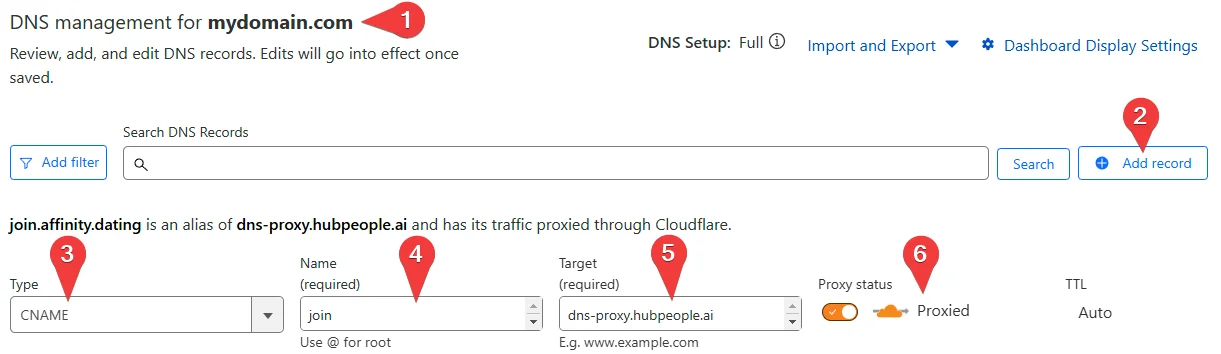
- In your Cloudflare account, open the DNS Records section (1).
- Press Add record (2).
- Set the record Type to CNAME (3).
- In Name, enter the subdomain you want to use, for example
join(4). - In Target, enter
dns-proxy.hubpeople.ai(5). - Make sure the Proxy setting is enabled, the orange cloud showing Proxied (6).
- Save the record.
Linking a members area domain
If you also want your members area on the same parent domain as your landing pages, add one more CNAME record. The target depends on your brand's business type:
| Brand type | CNAME target |
|---|---|
| Mainstream | affinity.thehubpeople.com |
| Adult | excite.thehubpeople.com |
The Proxy setting must be enabled on this record too.
SSL settings
Three settings under SSL/TLS in Cloudflare's left-hand menu make sure your site serves securely:
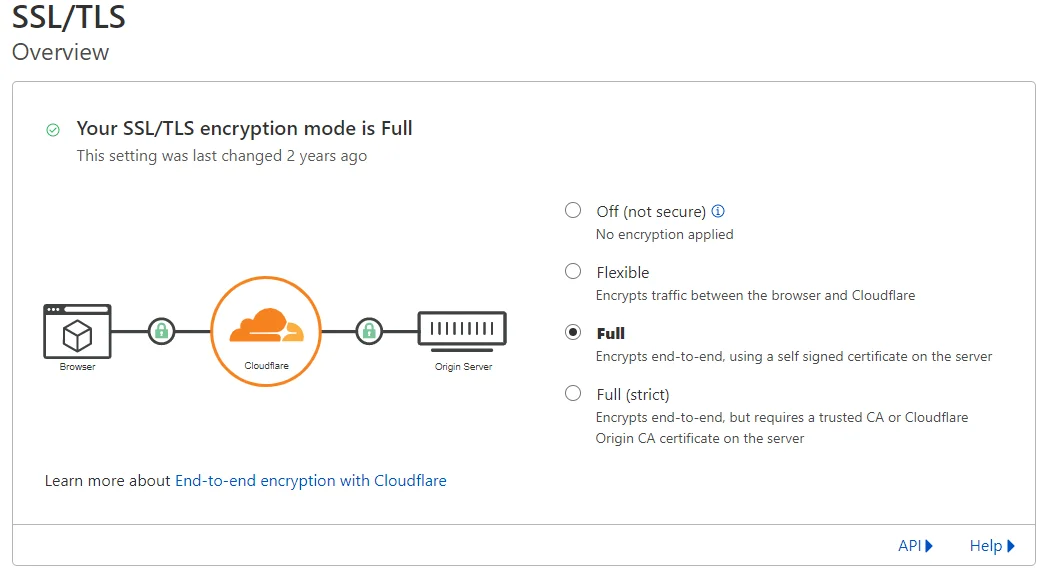
1. Encryption mode: Full
On the SSL/TLS Overview, set the encryption mode to Full. New Cloudflare zones sometimes sit on Flexible, which is not what you want here.
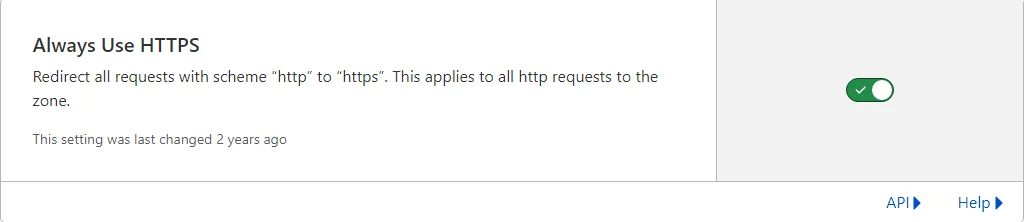
2. Always Use HTTPS: on
Under SSL/TLS › Edge Certificates, make sure Always Use HTTPS is switched on, so every plain-http request is redirected to https.
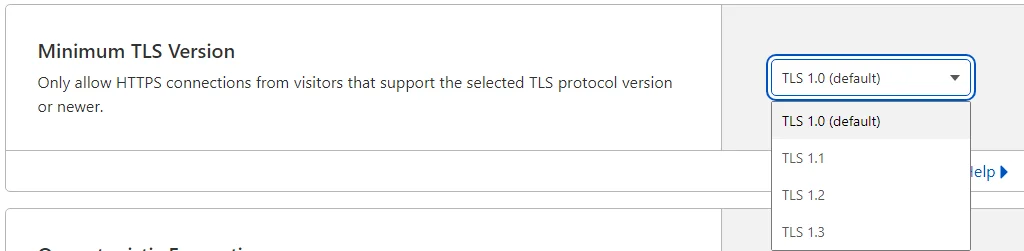
3. Minimum TLS Version: 1.2
On the same Edge Certificates page, change Minimum TLS Version from its default to TLS 1.2.
Caching: respect existing headers
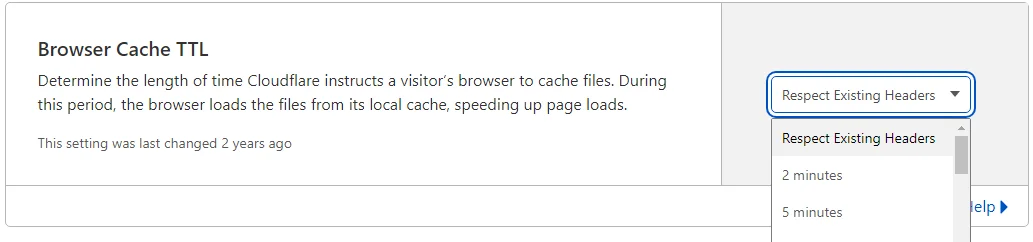
Under Caching › Configuration, change Browser Cache TTL from its default to Respect Existing Headers. This lets the platform control how long browsers cache your pages, so content updates reach your visitors when they should.
The www redirect rule
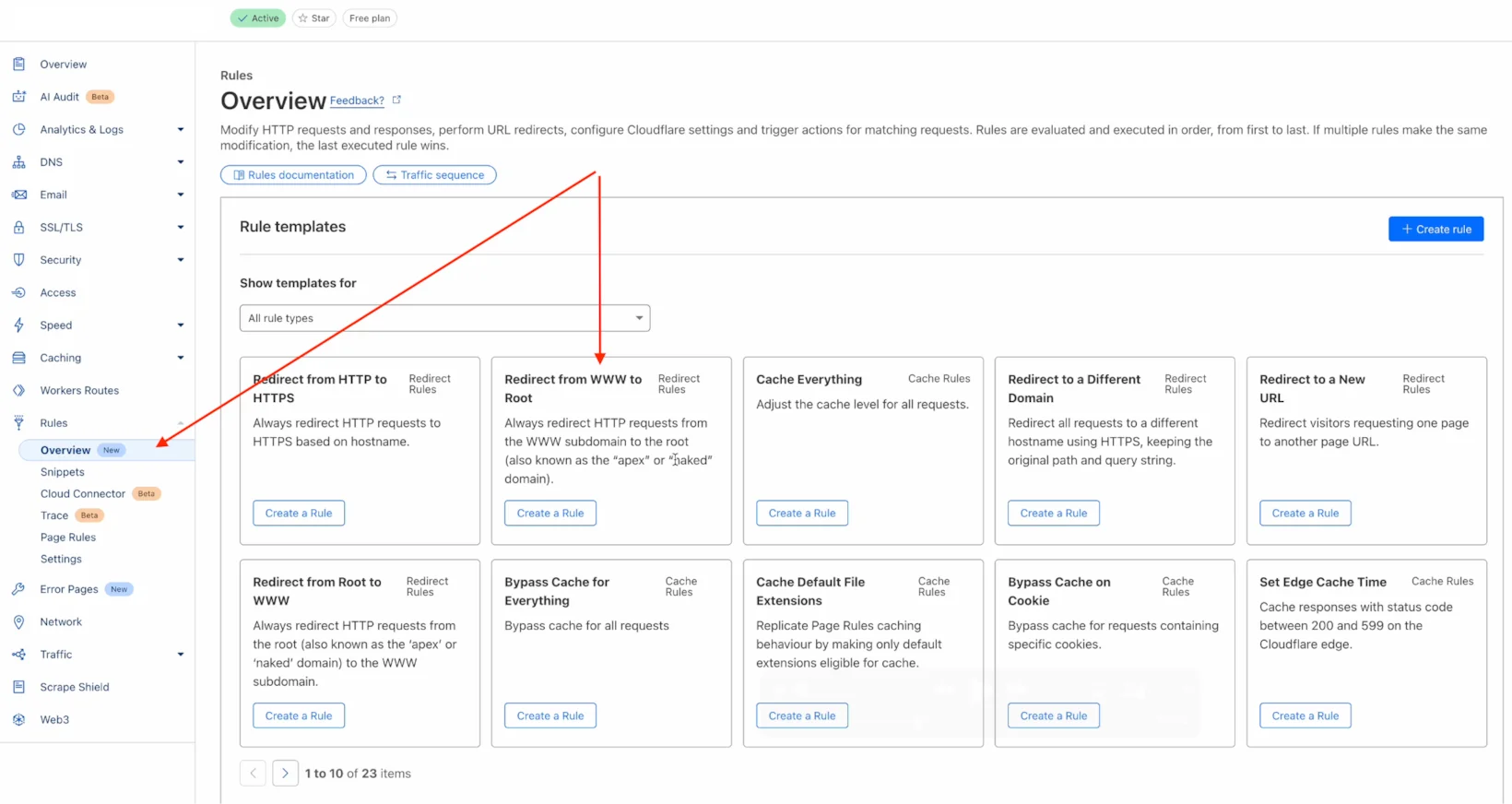
Finally, under Rules › Overview, apply the rule template Redirect from WWW to Root. This sends anyone typing www. in front of your domain to the clean address, so both forms work and search engines see one site.
Quick checklist
| Where | Setting |
|---|---|
| DNS Records | CNAME, your subdomain, target dns-proxy.hubpeople.ai, Proxied |
| DNS Records (members area) | CNAME to affinity.thehubpeople.com (mainstream) or excite.thehubpeople.com (adult), Proxied |
| SSL/TLS › Overview | Encryption mode Full |
| SSL/TLS › Edge Certificates | Always Use HTTPS on, Minimum TLS 1.2 |
| Caching › Configuration | Browser Cache TTL: Respect Existing Headers |
| Rules › Overview | Template: Redirect from WWW to Root |