
Deleting pages in bulk
When you are tidying up a brand, you can remove several pages in one go instead of deleting them one by one. The page browser has a Delete Pages mode: turn it on, tick the pages you want gone, and confirm. Deleting is permanent, so this guide also covers what is protected and what cannot be undone.
Turn on Delete Pages mode
Open your brand and go to the Pages tab. At the top of the page list is a Delete Pages switch. Turn it on to enter delete mode: a tick box appears next to every page you are allowed to delete, and a red bar shows how many you have selected.
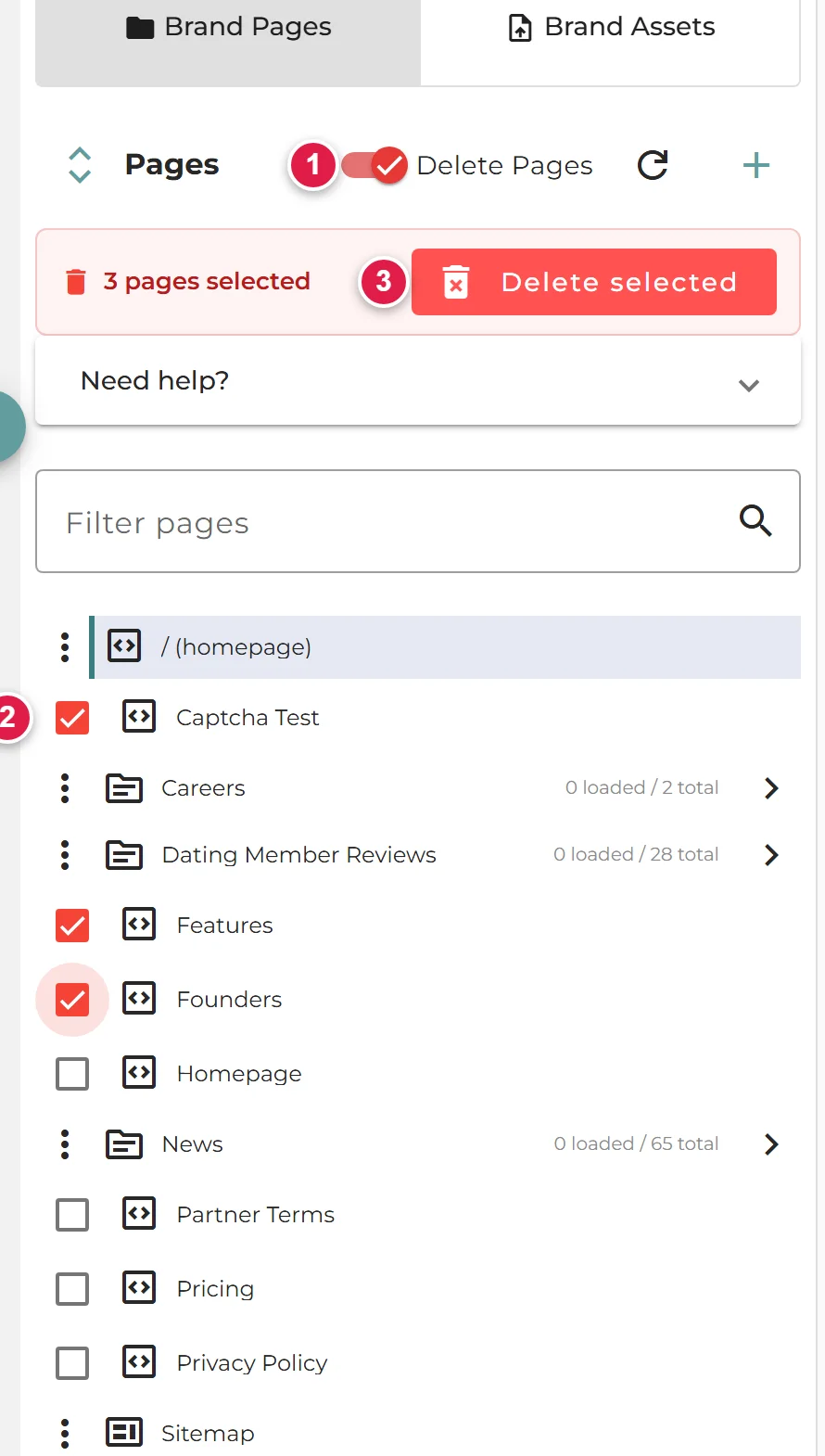
- 1The Delete Pages switch turns delete mode on and off.
- 2Tick the pages you want to remove. Only deletable pages have a tick box.
- 3The bar shows how many are selected, with the Delete selected button.
Select the pages and delete them
- Tick each page you want to delete. The counter updates as you go.
- Click Delete selected.
- A confirmation box asks you to confirm. Check the number is right, then click Delete N pages. To back out, click Cancel.
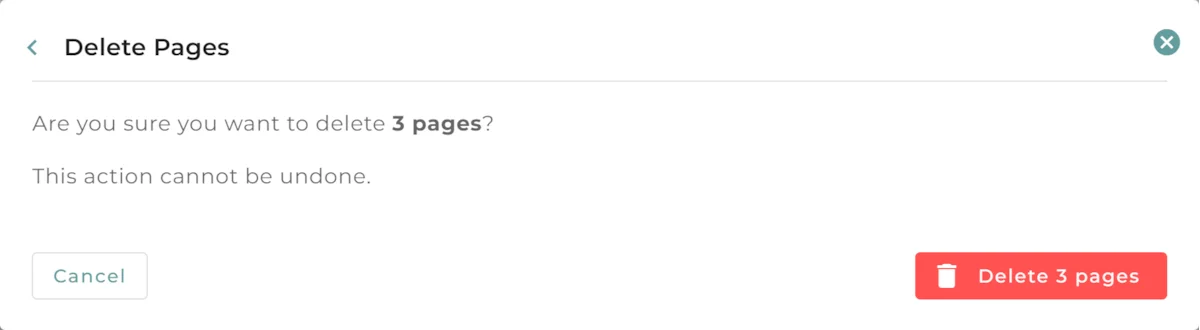
Once you confirm, the pages are removed, a message confirms how many were deleted, the list refreshes, and delete mode switches itself off. Turning the switch off yourself at any point clears your selection without deleting anything.
What can and cannot be deleted
Some items in the list never get a tick box, so they cannot be removed this way:
- Your homepage.
- Folders that group pages (the ones with an arrow to expand them). Delete the pages inside a folder rather than the folder itself.
- Built-in legal and info pages.
Everything else, your standard pages and articles, can be selected. If you cannot see a tick box next to a page, it is one of the protected items above.
Deleting is permanent
If a page you deleted still loads at its old address a while later (for example, flagged in Google Search Console), that is a cached copy left behind, not the page coming back. Clear it with the Clean Stale HTML tool: Cleaning up stale pages →