
Finding and searching your pages
As your brand grows, the page list gets long. The page browser lets you jump straight to the page you want: switch between your pages and your uploaded assets, open folders to see the pages inside, and filter the whole site by name or path. Find it under My Brands → open your brand → the Pages tab. The browser is the panel down the left; selecting any page opens its settings on the right.
The page browser
Open your brand from My Brands and click the Pages tab. The left-hand panel lists everything in your brand. It has two views, switched with the toggle at the top:
- Brand Pages: the pages that make up your site.
- Brand Assets: the files you have uploaded, such as stylesheets, images, and fonts. These are served directly and do not appear as pages.
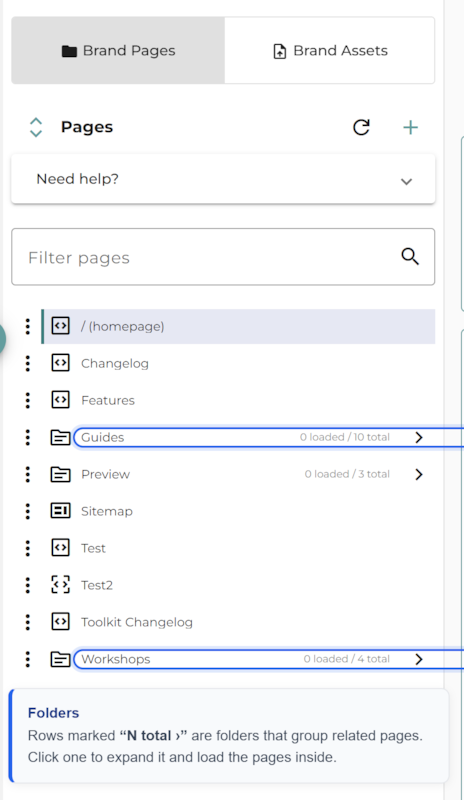
Folders group related pages
A row marked “N total ›” (for example 0 loaded / 10 total) is a folder, not a page. It gathers the pages that sit beneath a path, such as everything under /guides. Click a folder to expand it; the pages inside load in as you open it, which keeps large brands quick to browse. Click again to collapse it.
Filter your pages
The quickest way to a specific page is the Filter pages box. Type part of a page’s name or its path and press Enter (or click the magnifier) to run the search. The list narrows to the matches and a count tells you how many pages were found. Clear the box with the × to return to the full list.
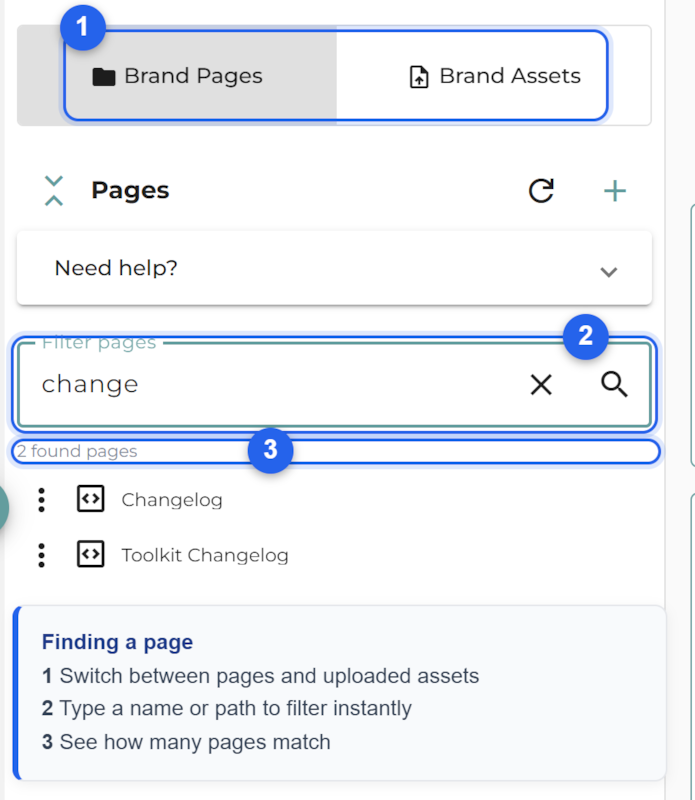
The filter searches your whole brand, including pages inside folders you have not opened yet, and it matches on the page’s path as well as its name. So you can:
- Search a word from the title, for example
pricing, to find it wherever it lives. - Search part of a path, for example
guides/, to pull up everything under that section at once.
Open a page from the results
Click any page in the list to select it. Its settings open in the panel on the right, where the View, Edit, and Generate With AI actions sit, along with the page’s title, description, template, and menu settings. The three-dot menu beside each row holds per-page actions.