
Creating pages
An overview of how pages work in the HubPeople portal: the difference between standard pages and articles, the article schema types, and how the author and publish-date fields behave. For a hands-on walkthrough of building a specific page type, see the dedicated guides below.
Choosing a page type
When you add a page (open the Pages tab and use the + button, then Create a New Page), you choose a Page Type and then a Template Type for it. The page type decides the kind of page you are building; the template decides its layout.
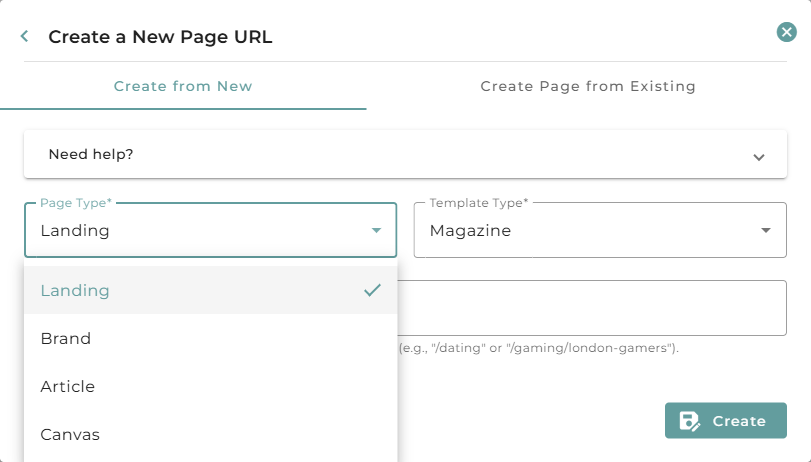
There are four page types, each with its own set of templates:
- Landing: marketing and campaign pages. Templates: Magazine, Chicago, Minimal No Scroll, London, and Prague. (Minimal No Scroll With Menu was retired in August 2026 and is no longer offered. Pages already using it are unaffected.)
- Brand: pages focused on your community, built around your brand's members and events. Templates: Member Profiles and Events.
- Article: a written, dated piece of content such as a blog post, news item, or long-form guide. It has a single template, Article. Articles add author and publish-date information that the other types do not (covered below).
- Canvas: build-your-own pages, the most flexible type and what most custom pages use. Templates: Canvas Studio (the full visual page builder) and Canvas Frame (for embedding your own framed HTML). Creating a Canvas page →
Whichever type you choose, the page is a standard web page unless you make it an article, which adds author and publish-date information (see below).
Standard page or article?
There are two ways a page becomes an article:
- By template: choosing the Article page type gives you the article layout, with a title, subtitle, body, a publication date, and an author block that can appear on the page itself.
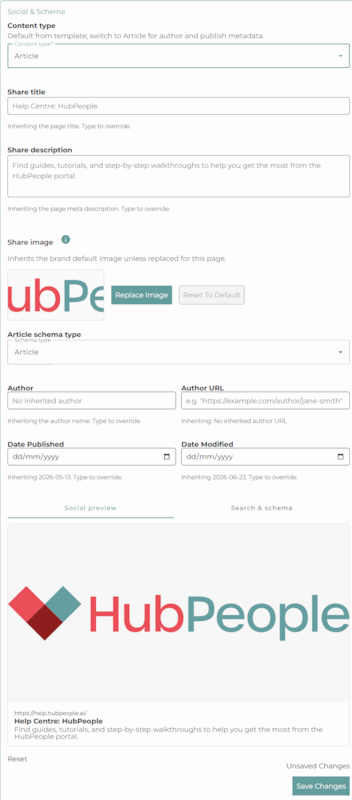
- By content type: every page (whatever its template) has a Content type setting in its Social & Schema panel. Leave it as Standard, or switch it to Article to unlock the author and publish metadata. It defaults from the template, so an article-template page is already set to Article.
Switching the content type to Article is what tells search engines and social platforms to treat the page as an article rather than a generic web page. Open a page, find the Social & Schema panel, and set Content type to Article. The article fields then appear.
Article schema types
Once a page is an article, the Article schema type dropdown lets you tell search engines what kind of article it is. This changes the structured data the page generates, which can affect how it is presented in search results.
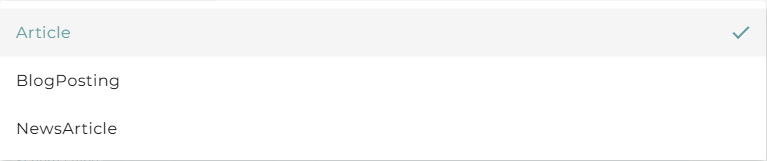
- Article: the general-purpose choice. Use it for most authored content when nothing more specific fits.
- BlogPosting: for blog posts and opinion pieces, the kind of content that lives in a blog or news feed.
- NewsArticle: for timely news and press-style updates.
If you are unsure, leave it on Article. You can change it at any time.
Author and date fields
Articles carry two pieces of information that standard pages do not: who wrote the page, and when it was published. These live in the same Social & Schema panel once the content type is Article.
- Author: the name credited for the article. It can appear as a byline on the page (for example, "By Jane Smith") and is included in the article's structured data.
- Author URL: an optional link to the author's profile or page, used in the structured data to identify who the author is.
- Date Published: when the article first went live.
- Date Modified: when it was last updated. Keeping this current signals to search engines that the content is being maintained.
How inheritance works
Each field shows an inherited value as a hint, so you rarely have to fill them in by hand:
- Author inherits from the page, falling back to your brand. The hint reads "Inheriting the author name. Type to override."
- Date Published inherits the date the page first went live, and Date Modified inherits the date it was last changed. The hints show the dates being inherited (for example, "Inheriting 2026-05-13. Type to override.").
Leave a field blank to keep the inherited value, or type into it to override it for this page. After any change, use Save Changes at the bottom of the panel.
Step-by-step guides
Building a specific type of page? Start here:
- Creating a Canvas page → a full video walkthrough.
- Uploading a site with a ZIP → create and update many pages at once.
More page-type guides will be added here over time.