
Forcing a page to update
When you change a page, the live version updates automatically. Once in a while a recent edit does not appear straight away. Force page Update is a belt-and-braces way to rebuild a single page so your latest changes show. You should rarely need it.
What it does
Your pages are served as ready-made HTML for speed. When you edit a page, the platform rebuilds that ready-made version for you. Force page Update simply triggers that rebuild on demand for one page, so the live page is regenerated from your latest content.
When to use it
Use it when a change you made to a page is not showing on the live page after a short wait. Because rebuilds normally happen automatically, this is just a manual nudge for the rare occasion one is delayed. It is a per-page action: you run it on the specific page that looks out of date.
How to force a page to update
- Open your brand and go to the Pages tab.
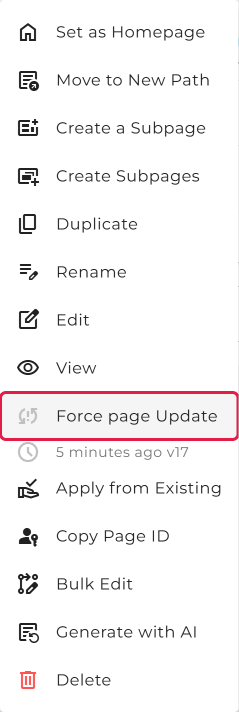
- Find the page in the list, click its three-dots (⋮) menu, and choose Force page Update.
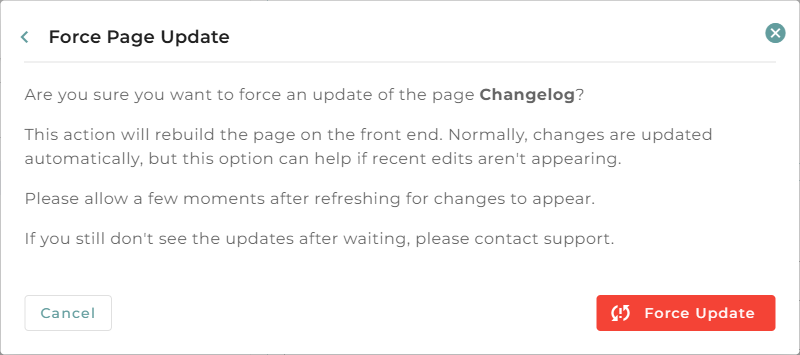
- A short message explains that it will rebuild the page. Click Force Update.
- Allow a few moments, then refresh the live page. If it still does not show after waiting, contact support.
Checking the Page Render Status
To be sure a page has finished rebuilding, open it in the editor (the Edit option) and look for the Page Render Status indicator near the top. It updates on its own every few seconds, so you can watch a rebuild complete.

It shows one of four states:
- Up to date: the live page matches your latest content. Nothing to do.
- Pending: a rebuild is queued and about to start.
- Rendering: a rebuild is in progress.
- Failed: the last rebuild did not complete. Use the refresh button next to the status to try again, and if it keeps failing, contact support.
Next to the status you will also see two extra details: a version number in brackets, like Up to date (v12), which ticks up each time the page is rebuilt, and a Last Rendered At time showing how long ago the page last finished rendering, like 2 minutes ago. Together they let you confirm that a rebuild has actually happened, and when.
After a Force page Update, the status moves through Pending and Rendering, then settles on Up to date once the page has been rebuilt, with the version stepping up and the last rendered time resetting to a moment ago.
Force page Update vs Clean Stale HTML
These two are easy to mix up, but they do different jobs:
- Force page Update (page level, in the three-dots menu) rebuilds one page so your latest edits appear. This is the one to use when a page looks out of date.
- Clean Stale HTML (brand level, in About your brand) removes leftover pages you have deleted or moved. It does not refresh or regenerate the content of your existing pages.
So if a page is not showing your changes, use Force page Update, not Clean Stale HTML. See Cleaning up stale pages →