Connect your brands to AI
From today, Claude can see your HubPeople brands and work on them, with you.
One connection, three steps.
Welcome. Say the one sentence: from today you can connect Claude to your HubPeople account and ask it about your brands, from the web, the desktop app and your phone. Then: one connection, three steps, and we take them in order.
From today, you can connect Claude to your HubPeople account.
- ✓Open to every partner.Any HubPeople login. No invite and no waiting list.
- ✓Nothing to install for the first two steps.One connector on your Claude account, added once.
- ✓It works from the web, the desktop app and your phone.The connection follows your Claude account, not the machine.
This is the release. Three facts, read them off the slide. Next slide says what Beta means.
Beta means it is working, and we want your feedback.
- ✓Everything is fully working on your live brands.What you see today is what you get to use.
- ✓We are still building out and testing more.Your thoughts on what works, and what you wish it did, shape what comes next.
- ✓Feedback is wanted, and welcome.A two-minute form, on every help page. It goes straight to the team.
Three lines. Beta means working, and listening. Next slide is the form.
The feedback form, on every help page.
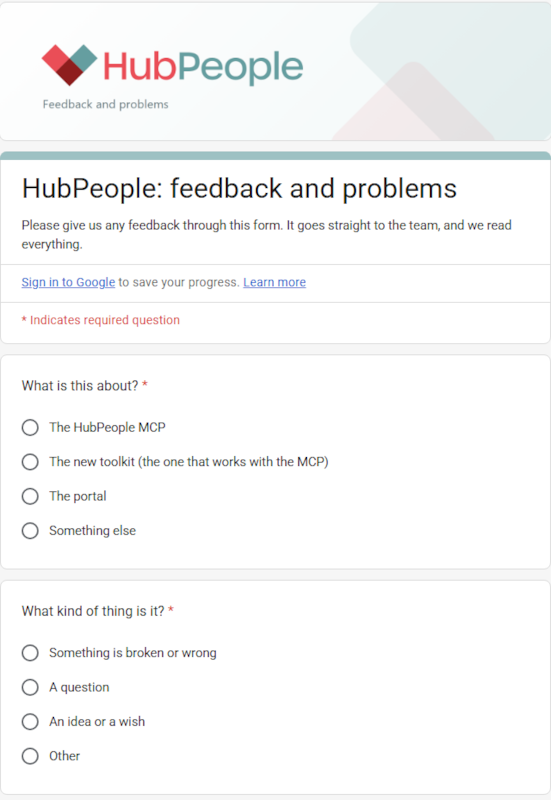
Quick point: this is the form. Bottom right of every help page. Something confusing, a wrong answer, a thing you wish it could do.
Ask your portfolio a question, and get an answer.
Plain English. No names of tools, no code, no menus to learn.
Six questions you could ask this afternoon. The first two replies are real, from my own brands; the rest show the shape of what comes back. Demographics, growth and reviews are the ones partners ask for most.
What you can do when you connect your brands to AI.
Real things it can do today, in partner words. Reads look, writes change and always ask first. Not a jump-off: the card is there so people can find the list afterwards.
Talk to your brands from your phone.
A small change, on the train
Anywhere you have Claude
- The connection belongs to your Claude account, so it is on your phone the moment it is on your laptop.
- Ask, check and change from the Claude app, the web or the desktop app.
- It shows you the options first, asks once, then makes the change on the live site.
A real exchange. We will see this play later, on slide 13.
Stay on the deck. This is the exchange the step 2 clip shows; you play it at slide 13, not here.
Whole pages, when you want more than a line of copy.
What you say
What the toolkit adds
- A whole brand comes down as files on your machine.
- New pages are built in your brand's look and previewed first.
- Audits across the lot, and a backup before every push.
- Portfolio-wide: every brand you run, in one folder.
- Where the skills live: page building on designer-made patterns, site audits, site starts, member loops on location pages, and the guardrails that keep it on the rails.
Step 3 of the three, and where the leverage is.
Stay on the deck. The toolkit is the same connection with a folder behind it; the setup guide is the jump-off at slide 16.
From here, we follow the help page, step by step.
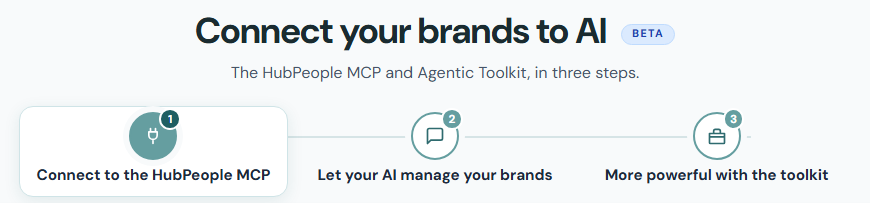
Memory point. Everything from here matches the page, top to bottom. Do not open it yet: the first jump-off is the next slide.
Sign in once, and every brand is there.
JUMP OFF 1 of 4. Click the card: it opens in a new tab. Play the step 1 clip (about ninety seconds, no sound) and invite people to follow along on their own account. Do not add the connector on yours: it is already there. Close the tab or switch back; the deck is still on this slide.
Settings, then Connectors, then Add custom connector.
What you type
Name HubPeople
Remote MCP server URL
What you leave alone
- Every other field. They fill themselves in from our server.
- Then sign in with your HubPeople login and approve.
- The same on a Mac, on Windows and on the web.
Lower case, no trailing slash. That address is the only thing you need.
One address. If anyone asks about tokens or API keys: there are none, and any instructions that mention one are out of date.
Set the read-only tools to Always allow, and leave the rest.
- ✓Read tools look at things and change nothing.Allow them once and you stop being asked.
- ✓Write tools keep asking, every time.That card is your yes. Nothing changes without it.
- ✓On the Claude Free plan you get one custom connector.On a Team or Enterprise plan, an Owner adds it once for everyone.
If the tools ever vanish from a chat, your sign-in has lapsed. Reconnect from the connector settings.
The one setting worth doing on day one. Then the plan limits, because someone will ask. The lapsed sign-in line: it looks like it was never connected, and the fix is in Settings, Connectors.
Three prompts to start with.
JUMP OFF 2 of 4. Either click the card and play the step 2 clip in the new tab, or run the three prompts live in Claude on the web, pasted from the demo script. On prompt 3, pick one of the three, say yes, then open the live page. Switch back; the deck is still on this slide.
It showed you the wording first. Then it went live.
- ✓It read the page before it wrote anything.The new line matches the page around it.
- ✓The card asked, and nothing happened until the yes.Say no and it stops there.
- ✓Then we looked at the live page.The change was there.
Three sentences about what just happened. Then move on.
The same conversation, with a folder behind it.
- ✓A whole brand comes down as files on your machine.Every editable page, with a record of which version it came from.
- ✓Pages are built in your brand's look and previewed before anything goes live.Two looks, in your fonts, in the pane beside the chat.
- ✓Every push is checked, proved and backed up.The way back is a file you can see.
Anything bigger than a line of copy, a new page, a whole section, is step 3.
Say what it is in one line: a folder you open in the Claude desktop app. Same assistant, same connection, with your site as files next to it.
One folder, one message, one new chat.
JUMP OFF 3 of 4. Click the card: the setup guide opens in a new tab. Scroll steps 2 to 4 and point at step 4's red box, the new chat. Switch back; the deck is still on this slide.
Cold start: the first five things to say, in order.
Nothing on this list changes a live site. The ladder is on the setup guide, with a Copy button on each.
This is the slide for the person who installs it tonight and freezes. Five prompts, in order, all safe. Prompt 1 is the check that it loaded.
A page, from four prompts.
JUMP OFF 4 of 4. Walk the four rungs first, then click the card and play the step 3 clip in the new tab. Switch back; the deck is still on this slide.
Say what you want, not how to do it.
“Make it feel less corporate” gets you further than naming files, because it already knows where everything lives.
Eight prompts, seven from the setup guide. The point: describe the outcome, and hand it your material through the inbox folder rather than pasting it into the chat.
Work across the whole site, not one page at a time.
- ✓Ask for the set, and get one look across all of it.“Build a location page for each of these five cities, in the same look as the homepage.”
- ✓Look for the places pages could link to each other.“Where could these pages cross-link?” It reads the whole site and suggests the links.
- ✓Let your members decide what gets built first.“Where are most of my members? Build the location pages there first.”
One brand, every page in one folder, so the whole site moves together.
This answers the question that always comes: can I do this for forty pages. Yes, with the toolkit, and the point is cohesion: one look, one voice, links between the pages.
We keep building, and your feedback steers it.
- ✓Stats.Registrations, clicks and revenue over a period, so you can ask how a brand is doing, not only who is on it.
- ✓Your feedback, assessed and acted on.What you report this month decides what we build next.
- ✓The toolkit keeps improving.Every release is on the changelog page, and upgrading is one message.
- ✓More assistants, as they are proven.Claude today. Others that speak MCP should work, and we will write each one up as it is confirmed.
Four lines. Stats is the one people will ask about: say it is coming, not here yet.
Three things to do this week.
Then tell us what you found. The feedback button is on every page, and it is what decides the next release.
Say all three out loud. Then paste the takeaway into the chat.
Everything is on one page.
And tell us what you find. The feedback button is on every one of these pages.
Close on the feedback line. Then over to Michael.