
Creating a brand with Hubbi
Published Updated
Every brand is created by chatting with Hubbi, the AI assistant in the portal. There is no form to fill in: you describe the brand you want in plain language and Hubbi sets it up. It works smoothly when you do two things: put Hubbi in the right mode, and give it everything it needs in one clear message. This guide covers both, lists the options Hubbi understands, and gives example prompts that get a good result first time.
Been here before? The Changelog lists what has changed in this guide since your last visit.
Put Hubbi in Agent mode
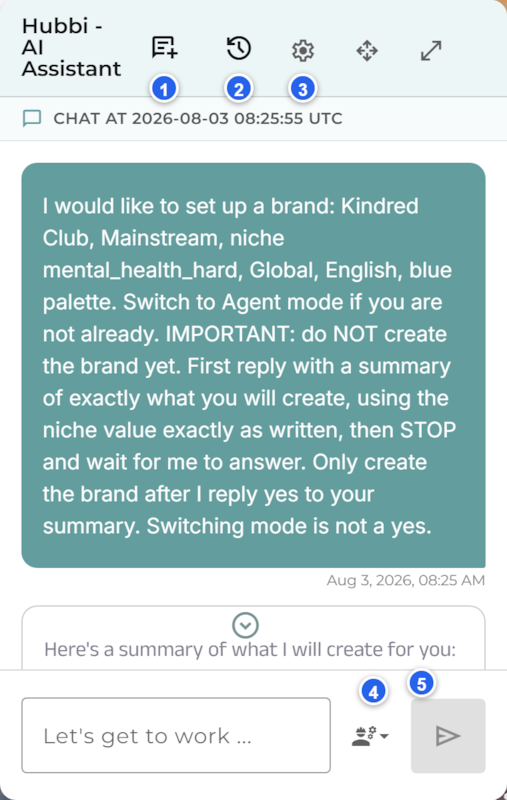
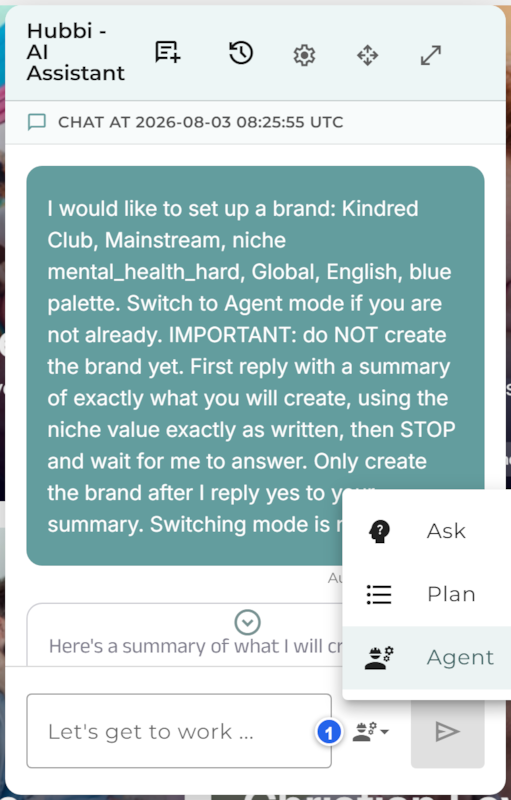
Hubbi has three modes, chosen from the mode selector (4) beside the message box:
- Ask: answers questions using your brand context, and makes no changes. This is the default.
- Plan: drafts a step-by-step plan for you to review before anything happens.
- Agent: runs actions and applies changes to complete a task. Creating a brand only works in Agent mode.
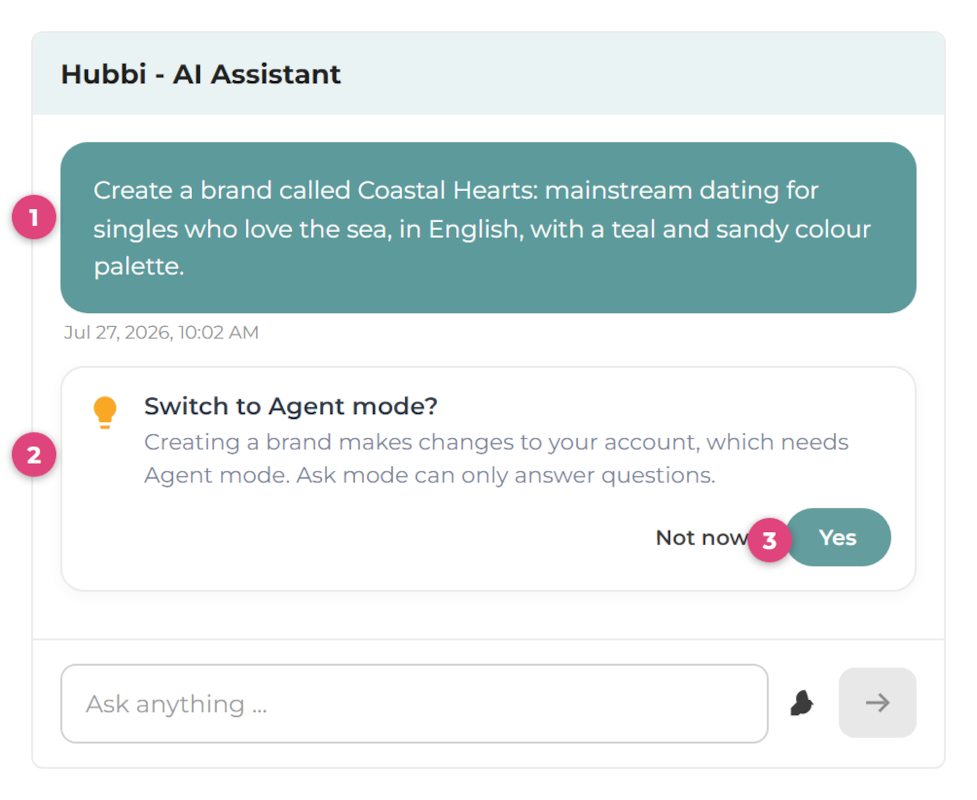
Creating a brand only works in Agent mode, so switch to it yourself before you type your request: open the mode selector and choose Agent first, rather than waiting for Hubbi to offer. Ask is the default, and in Ask mode Hubbi can talk about the brand but cannot actually create it, which looks like it keeps discussing or asking you to confirm without ever finishing. Switching yourself up front also avoids a confusing back-and-forth where Hubbi offers to switch mode partway through. If you do see a "Switch to Agent mode?" prompt, choose Yes.
If you forget and ask in the wrong mode, Hubbi shows a Switch to Agent mode? card explaining why the switch is needed. Choosing Yes switches and carries on with your request:
Describe the brand in one message
Give Hubbi all the details at once rather than one at a time. The more you leave out, the more Hubbi has to guess or ask for, which is the main cause of a slow, back-and-forth session. Include:
- the name of the brand;
- whether it is Mainstream or Adult;
- the niche;
- the main country or Global;
- the language;
- a colour or palette.
Hubbi reads these, checks them against the options it supports, fills in anything sensible you did not specify, and shows you a summary to confirm before it creates anything.
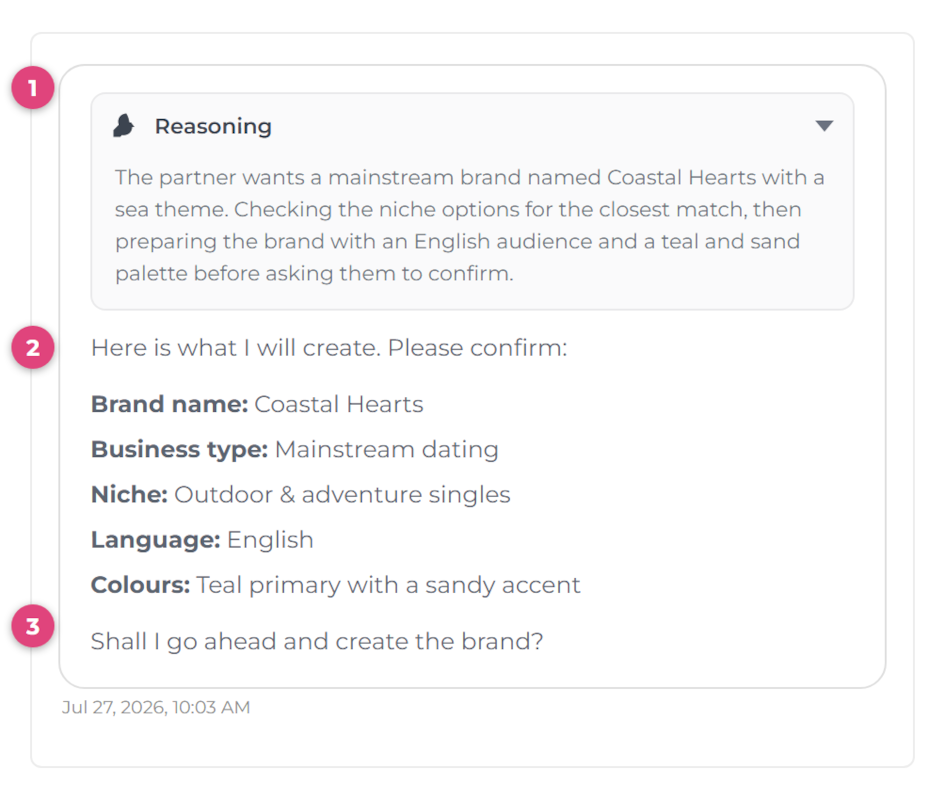
The Reasoning panel (1) is Hubbi showing its thinking as it works through your request. It is collapsed by default; click it to read how Hubbi interpreted what you asked for, which is handy when a detail comes back different from what you expected. Nothing in it needs a response, and your answer only ever goes to the question at the end (3).
The brand options Hubbi understands
Hubbi matches your words to a fixed set of options. Using the recognised terms below gets a clean match. If you are unsure, you can ask Hubbi directly, for example "what niches are available for an adult brand?", and it will list them.
Business type
Two types, and this choice also decides which niches are available. You may see them called by their network names, Affinity and Excite; in your message to Hubbi use the words Mainstream and Adult:
| Affinity | General, non-explicit brands. Say Mainstream in your prompt. |
| Excite | Adult brands. Say Adult in your prompt. |
Niche
The niche is required, and it must belong to the business type you chose. The lists below are current as of August 2026; the platform adds niches over time, and the Brand Builder always carries the up-to-date list.
Mainstream (Affinity) niches
Adult (Excite) niches
Language
Hubbi can create a brand in any of five languages:
This sets the brand up in that language. For what does and does not appear translated on the live pages, see Showing your site in other languages →
Country
Choose Global, or a specific country as the brand's main market. A wide range of countries is supported, including the United Kingdom, USA, Canada, Australia, New Zealand, Ireland, and Spain. If you do not say, Hubbi picks a sensible default, so name the country if it matters.
Audience age
An optional attribute with two settings: Normal (the default) or Senior, for a brand aimed at an older audience.
Colour
Give a colour or a palette name, for example blue, teal, or warm neutrals, and Hubbi matches it to one of its palettes. You can also ask Hubbi to list the palettes and pick one. A logo can be added now or later.
Best-practice prompts
Each of these gives Hubbi everything it needs in one go. Copy the shape and swap in your own details.
Confirm and create
Hubbi should always check with you before creating anything: it summarises the brand it is about to build (name, type, niche, country, language, and palette), you read the summary, then reply "yes" to confirm. Hubbi creates the brand and takes you straight to it, ready for you to add pages.
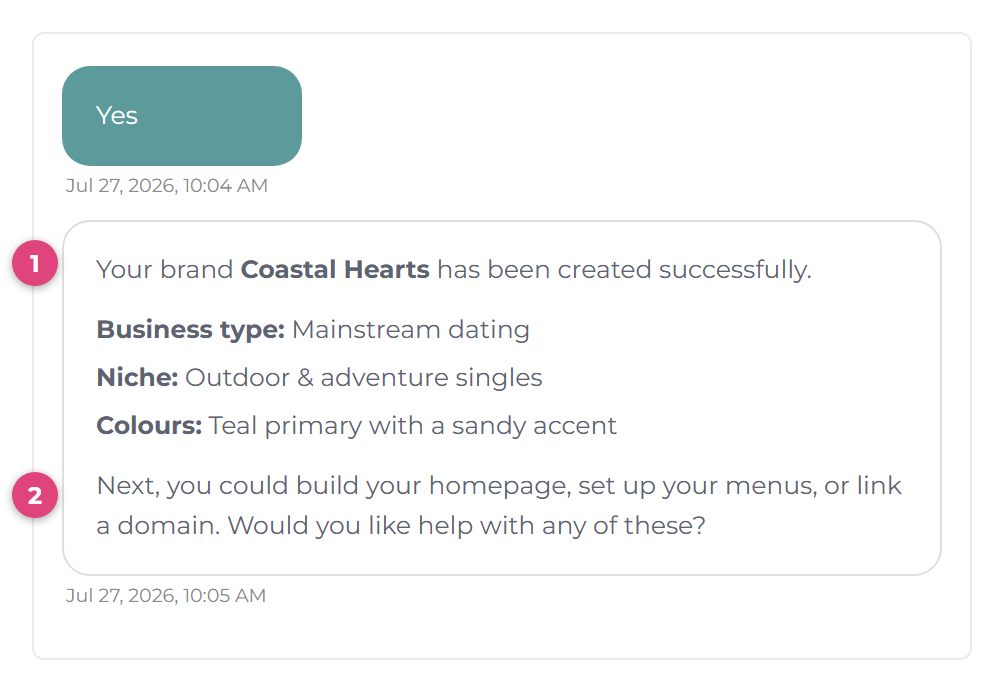
Some Hubbi replies also include clickable suggestion buttons for the likely next step. Clicking one sends that request for you, so you do not have to type it out.
Your chats are saved
Hubbi keeps a history of your conversations, so a brand-creation chat (or any other session) is never lost when you close the panel. Two buttons sit in the chat header next to the Hubbi title:
- New Chat starts a fresh conversation.
- Chat History (the clock icon) opens the history panel.
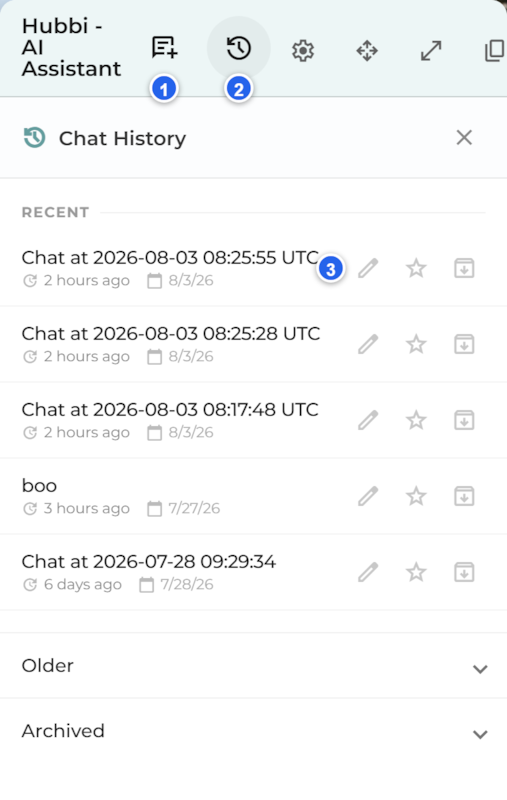
The history panel groups your chats into Recent, Older, and Archived. Click any chat to reopen it and carry on where you left off. Each conversation is titled automatically, and each entry offers three quick actions:
- Edit title (pencil): rename the chat to something more memorable.
- Star: mark the conversations you come back to often.
- Archive: tidy away a finished chat. Archived chats are not deleted; open the Archived group and use Restore to bring one back.
If Hubbi gets stuck
Nearly every stuck session comes down to one of these. Each has a quick fix.
Next steps
Once your brand exists, get to know it and start building:
Changelog
| Release | Changes |
|---|---|
| 3 August 2026 | Added the "Your chats are saved" section covering the new chat History panel. Refreshed both niche lists to the platform's new niche system and corrected what a "hard" niche is (an exclusive member pool). Business types now shown with their network names, Affinity and Excite. Added guidance on telling Hubbi to wait for your yes before creating. Screenshots retaken from the current portal. |
| 27 July 2026 | Updated for the reworked Hubbi chat: the expandable Reasoning panels and the clearer mode-switch prompts. Added the Published and Updated dates line. |
| 18 July 2026 | Guide first published on the Help Centre. |