
Connect your brands to AI Beta
Connect Claude to your HubPeople account, then let Claude install the toolkit. A few minutes, and you only do it once.

Both steps, start to finish, in under two and a half minutes.
Connect Claude to HubPeople
Once, with the HubPeople login you already have. The connection belongs to your Claude account, so the website, the desktop app and the phone app all have it.
- In Claude, open Settings, then Connectors, then Add, then Add custom connector.
- Name it HubPeople and paste
https://mcp.hubpeople.ai/mcpthen click Continue. - Claude picks the sign-in settings for you. Leave them as they are and click Add, then Connect.
- Your browser opens. Sign in with your HubPeople login, click Allow, and it takes you back to Claude.
- Recommended: set Read-only tools to Always allow. Leave changes on Needs approval, so nothing on your site changes until you say yes.
Show screenshots for these stepsHide screenshots
The numbers match the steps above.
- 1
Settings, then Connectors, then Add, then Add custom connector. 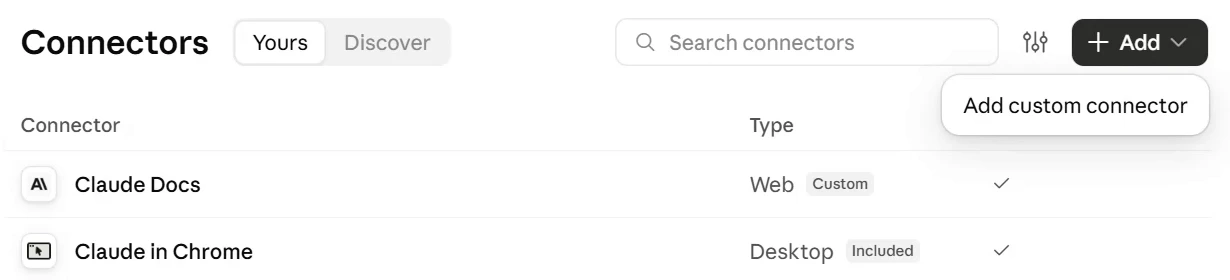
- 2
Name it HubPeople, paste the address and click Continue. 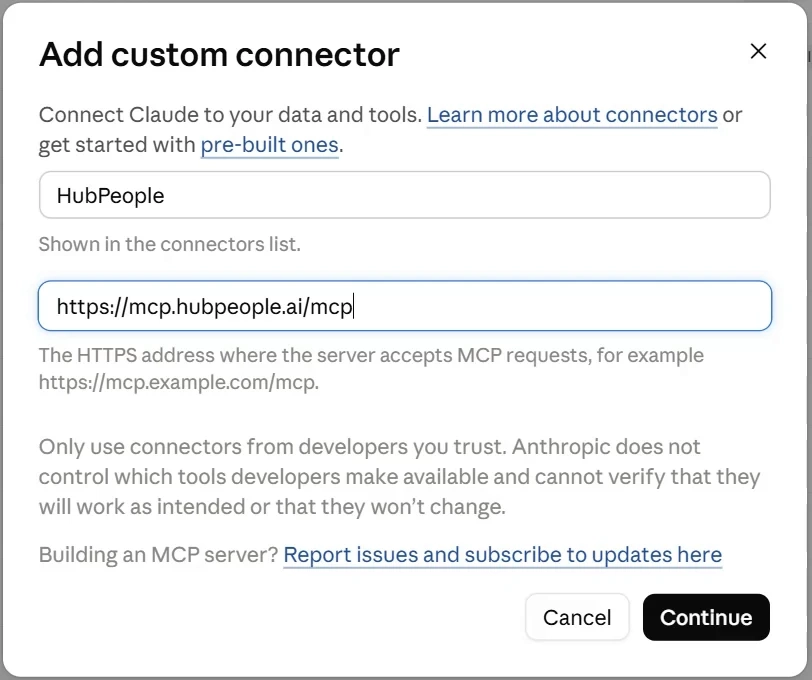
- 4
After you sign in, click Allow & Authorize. 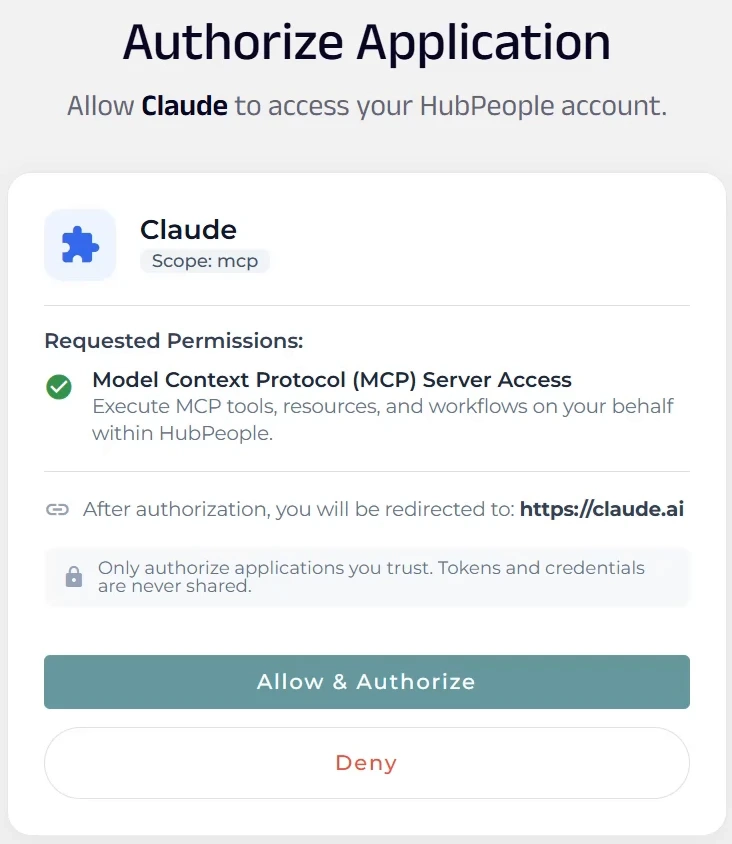
- 5
Read-only tools on Always allow, changes on Needs approval. 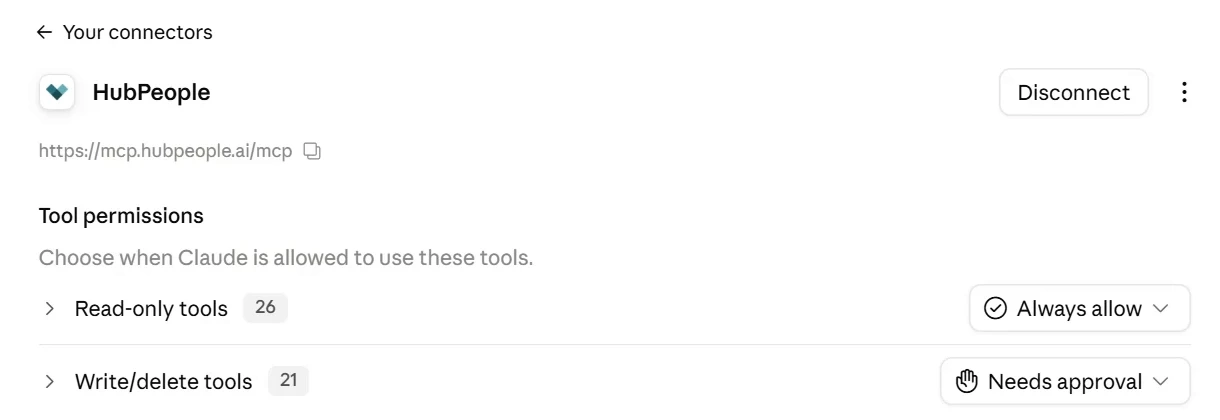
Try it
Start a new chat and ask. Put your own brand's name where it says [brand].
List my HubPeople brands.
What pages does [brand] have, and what needs fixing?
Give me three alternatives for the headline on [brand]'s homepage. Show me before you change anything.
Install the toolkit
For whole sites, new pages and audits, everything previewed before it goes live. It needs the Claude desktop app on Windows or Mac. On your phone or the web, step 1 is all you need.
- Make an empty folder called
hubpeople-toolkit, anywhere you like, such as your Documents or your Desktop. - In the Claude desktop app, open the Code tab. Under the message box, click No folder, then Open folder, choose
hubpeople-toolkitand click Trust workspace. - Ask Claude to download it:Claude downloads it, checks it and unpacks it into the folder.
Download the HubPeople toolkit.
- Start a new chat with + New, in the same folder. The toolkit loads when a chat starts, so start every chat in this folder to use it.
Show screenshots for these stepsHide screenshots
The numbers match the steps above.
- 2
In the Code tab, click No folder. Pick hubpeople-toolkit if it is under Recent, or click Open folder to find it. 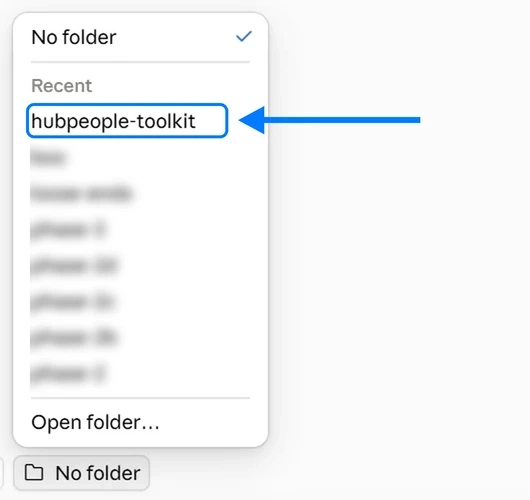
- 2
Then click Trust workspace. 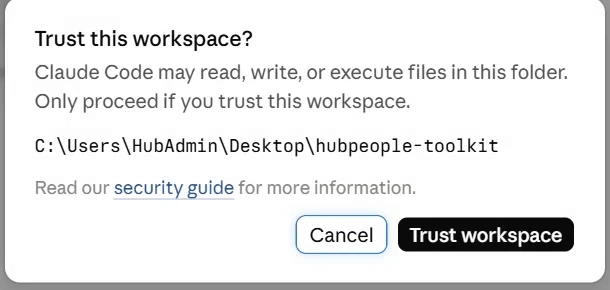
- 3
Check the folder says hubpeople-toolkit, then ask. 
- 3
Claude checks the download and unpacks it into the folder. 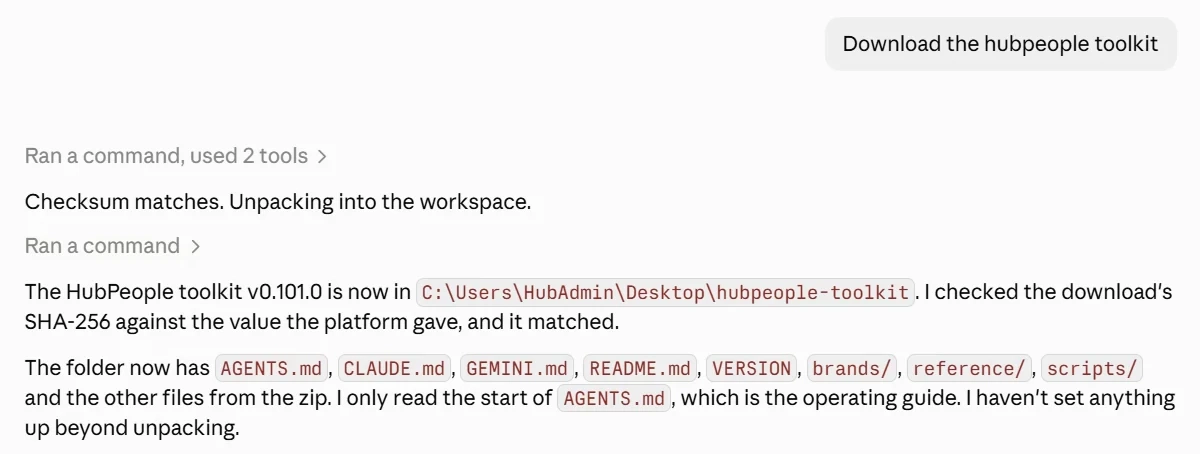
When a newer version comes out, Claude tells you and offers to upgrade it. Your brands and notes are left alone. More on upgrading
If Claude does not seem to know about the toolkit, the chat is on the wrong folder. Click the folder name at the top of the window and choose Change directory.
The toolkit uses Python. If your computer does not have it, Claude offers to set it up for you. On a Mac, the Python it already has is enough.
Try it
In the new chat:
Pull down [brand] and build a page about [topic].
Audit [brand] and tell me the three things most worth fixing.
What next
Tell us what you think
This is a beta. What you report decides what comes next.
Something confusing, a wrong answer, or a thing you wish it could do: two minutes on the form and it reaches the team.
Send feedbackEverything else
Every page in this space, in one place.